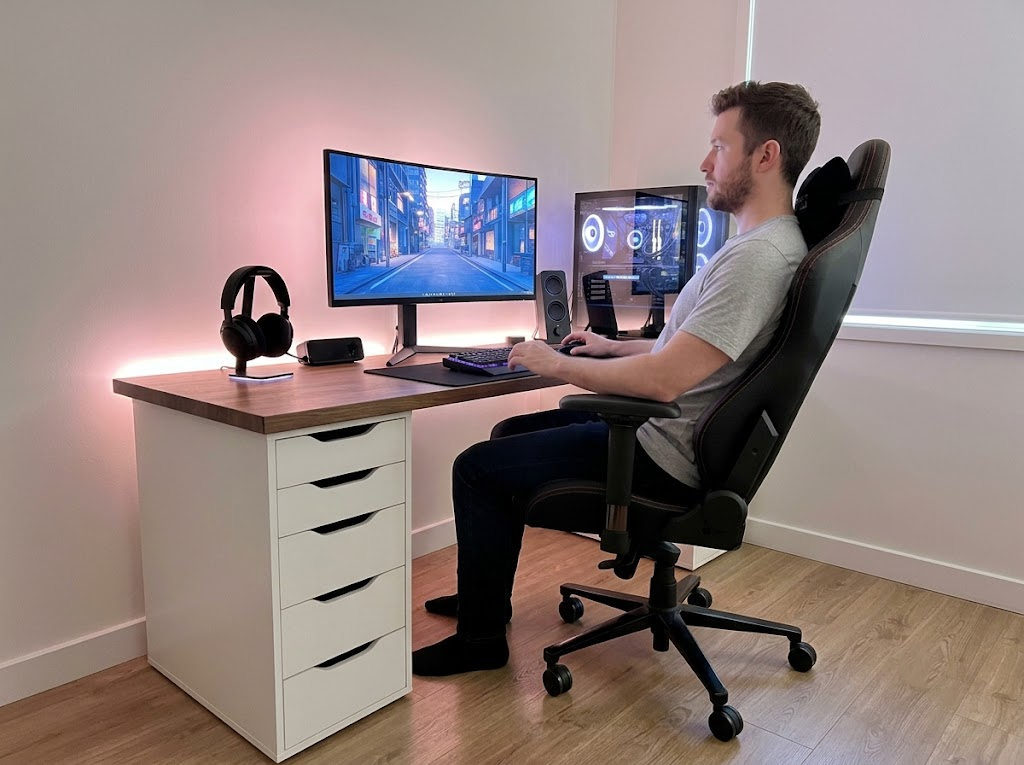


A monitor arm is an adjustable mount that holds your screen off the desk and lets you move it up, down, forward, back, and side to side. Monitor arm ergonomics is the practice of using that flexibility to place your display exactly where your body wants it, so your neck stays neutral, and your eyes stay relaxed across a full workday.
Get the setup right, and the payoff arrives fast, from less neck tension to a cleaner desk and a posture that holds up over eight hours instead of collapsing by mid-afternoon.
What a Monitor Arm Is
A monitor arm is a mounting system that replaces the stand your screen came with. Rather than a wide base sitting on the desk, the arm anchors to the desk itself and holds the display out on a movable joint, so you can position the screen wherever you want it.
That freedom of movement is the whole point of the hardware.
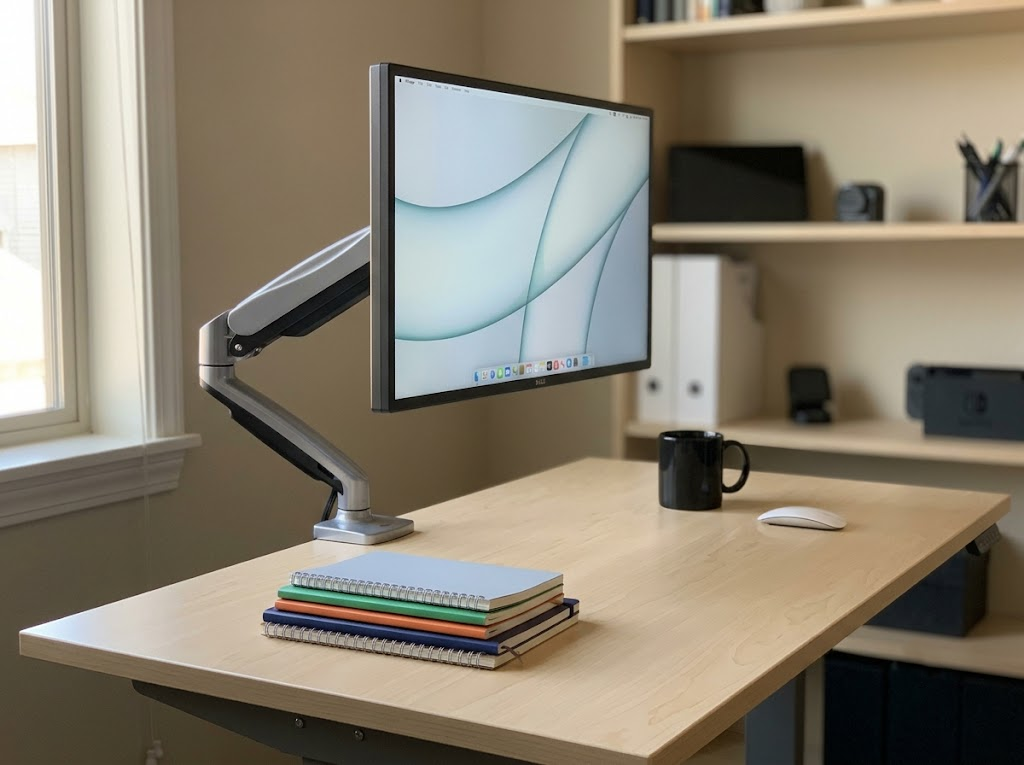
The arm attaches to your desk through a clamp or a grommet hole, then connects to the back of your screen using the standard VESA mounting pattern. An articulating joint or gas spring lets you glide the display into position with a light push. Raise it, pull it closer, tilt it toward your face, or swing it aside when you need the surface for paperwork.
An arm also earns its keep in a few common ways:
- Lifting a single screen so the top edge sits near eye level.
- Lining up two screens or a wide display at a matched height so your eyes travel evenly across them.
- Holding the viewing angle steady as you switch between sitting and standing.
- Clearing the surface that a bulky stand would otherwise hog.
- Turning the screen 90 degrees, which reads well for long documents and code.
>>> Read more: Finding the Best Monitor Height for Neck Pain
The Benefits of Monitor Arm Ergonomics
A monitor arm earns its place through a handful of practical gains that build on each other. When the screen sits where your body wants it, your posture improves, your eyes work less, and your desk opens up.
Here is where each benefit comes from.
It protects your neck and posture
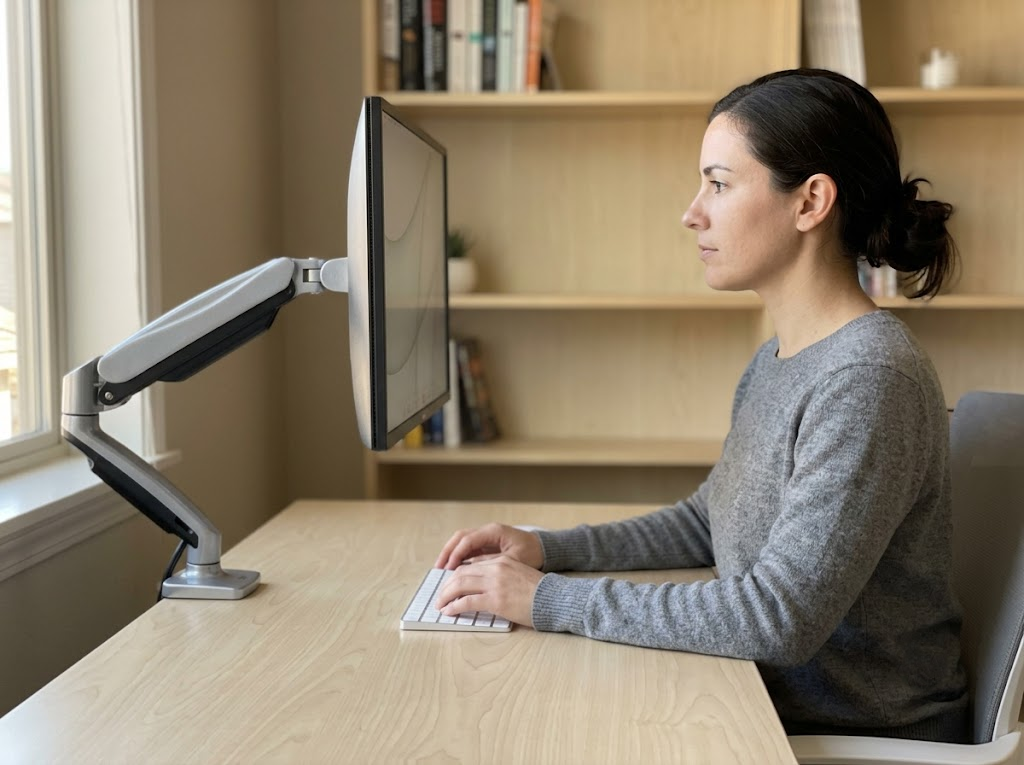
Your head weighs roughly 10 to 12 pounds, about the same as a bowling ball. For every inch it drifts forward of your shoulders, the effective load on your neck rises by around 10 pounds, and at a steep downward angle that strain can climb toward 50 pounds. A monitor arm lets you lift the screen so your head balances over your spine, keeping that load close to its natural 10 pounds rather than multiplying it.
The stakes are real for anyone at a desk. Surveys show that over half of office employees report neck pain, a pattern tied closely to sedentary work and poorly arranged workstations. The data behind that trend is laid out in this look at desk work and physical strain.
It eases eye strain
When the screen is at a comfortable distance, and your gaze falls slightly downward, your eyes focus with less effort and your eyelids close a touch more, which helps reduce dryness. A monitor arm makes it simple to nudge distance and angle until the display reads effortlessly.
It frees up desk space
Lifting the screen onto an arm clears the footprint that a bulky stand used to take up. Some single-arm mounts recover more than 80 percent of the surface a wide-base stand occupies. That space becomes room for notes, a sketchpad, a coffee, or just a calmer desk to think at.
It flexes with sit-stand desks and dual setups
Your eye level changes every time you go from sitting to standing. A monitor arm moves with you, so the viewing angle stays right in both positions. Running two screens? Dual arms let you center the primary display and angle the second one inward, cutting the head rotation that gives multi-monitor users a sore neck.
>>> Read more: Ergonomic Workstation Setup Checklist
How to Set Up a Monitor Arm for Ergonomics
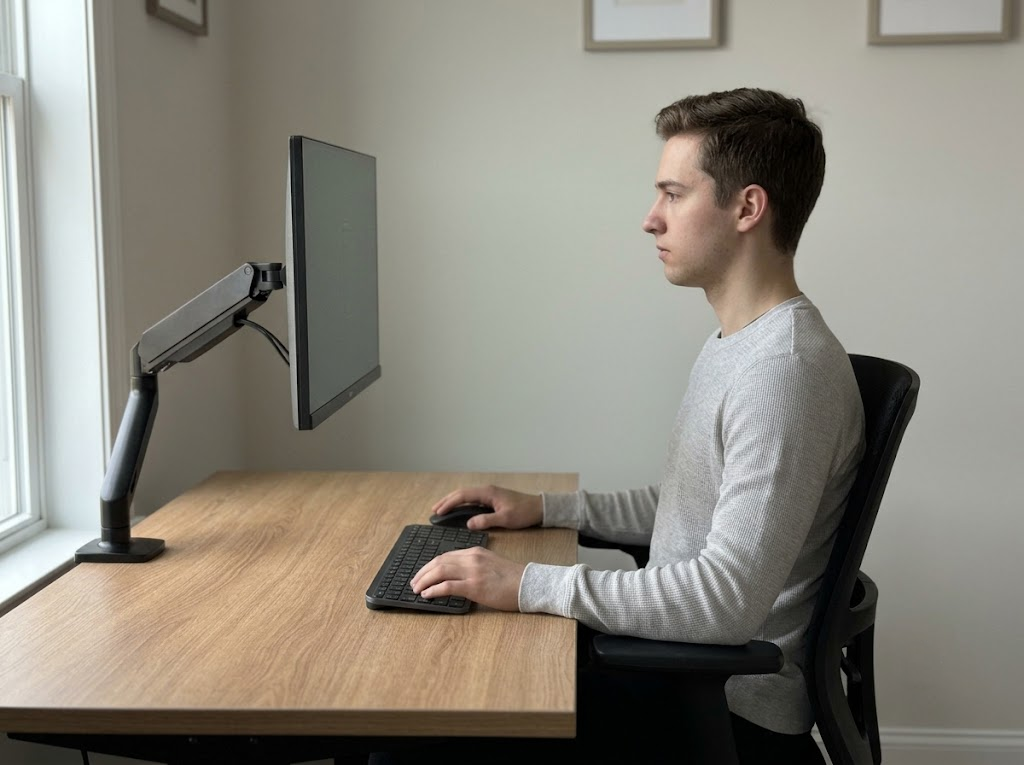
Buying the arm is the easy part. The comfort comes from setting it up right.
Most people move the screen first, which forces the rest of the body to chase it. Work the other way around. Set your body, then bring the screen to you.
Step 1: Set your chair and desk first
Adjust your chair so your feet rest flat on the floor, and your knees sit at roughly a 90-degree angle. Your back should be supported by the backrest, your shoulders relaxed, and your elbows bent to around 90-110 degrees, with your forearms parallel to the floor. Once that foundation is in place, move on to the monitor.
Step 2: Set the height
Sit upright, look straight ahead, and let your gaze land naturally. The top third of the screen should sit at or just below that line, so your eyes drift gently downward to read the middle of the display. A downward line of sight of roughly 15 to 20 degrees keeps the neck relaxed.
Step 3: Set the distance
Position the screen about an arm’s length away. A reliable test is to sit back, extend your arm, and check that your fingertips reach the display. For most people, that lands somewhere between 20 and 40 inches from the eyes. Too close and your eyes strain to focus. Too far and you start leaning in.
Step 4: Adjust tilt and angle
Tilt the screen back about 10 to 20 degrees so the surface faces your eyes more squarely. That reduces glare from overhead lighting and keeps your gaze angle comfortable as you scan top to bottom. Center the display directly in front of you so your head never twists to one side.
Step 5: Balance tension and manage cables
With the screen in place, adjust the gas spring or mechanical tension so the monitor holds firm yet still glides with a light push. If it sags or drifts, tighten the tension in small increments until it stays put. Route your cables through the arm’s channels to keep the desk tidy and the movement smooth.
Run through this checklist to confirm the setup:
- Feet flat, knees at about 90 degrees, back supported
- Elbows at 90 to 110 degrees, forearms level
- Top third of the screen at or just below eye level
- Screen about an arm’s length away
- Slight backward tilt of 10 to 20 degrees
- Display centered directly in front of you
- Arm tension balanced and cables routed
>>> Read more: How to Set Up the Best Ergonomic Desk Position
Choosing the Right Monitor Arm
Not every arm fits every desk or every screen. Three specifications decide whether a mount will work for you: VESA compatibility, mounting style, and weight capacity.
Check these before you buy.
Confirm VESA compatibility
VESA is the global standard for the four-hole mounting pattern on the back of most monitors. The two most common patterns are 75x75mm and 100x100mm, and most arms support both. Larger or ultrawide displays sometimes use 200x200mm and may need an adapter plate.
Pick a mounting style: clamp or grommet
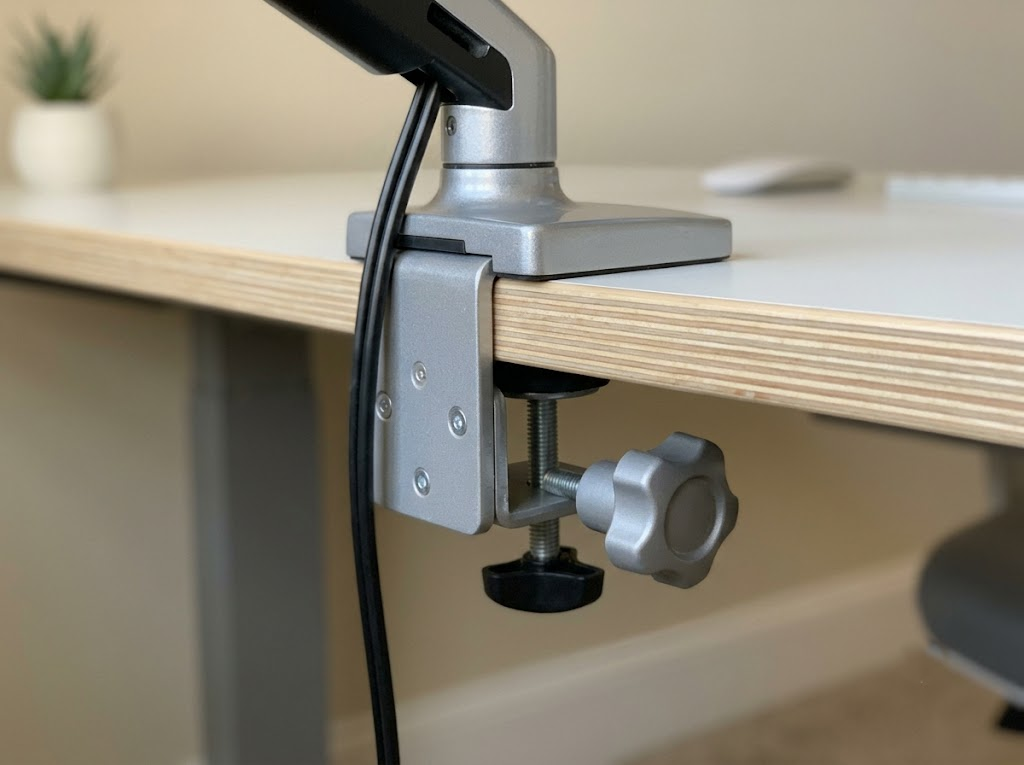
A clamp grips the edge of your desk like a vise and installs without drilling, which makes it flexible and quick to remove. A grommet mount passes a bolt through a hole in the desk for a more permanent, rock-steady anchor that suits heavy or ultrawide screens.
| Factor | Clamp mount | Grommet mount |
| Installation | No drilling, quick to move | Bolts through the desk |
| Stability | Strong for most screens | Best for heavy or ultrawide displays |
| Desk suitability | Solid front edge, roughly 10 to 50mm thick | Needs a hole or a spot to drill |
| Best for | Renters, frequent rearrangers | Permanent, high-load setups |
One caution for particleboard or laminate desks: over-tightening a clamp can crush the surface. A protective pad or reinforcement plate spreads the pressure and saves the finish.
Match the weight capacity and reach
Check your monitor’s weight and choose an arm rated for at least 10-20% above it. That headroom keeps the screen stable and prevents sag, which matters even more on dual-arm setups. Confirm that the arm’s reach and height range cover the distance from the edge of your desk to where you want the screen, especially if you stand for part of the day.
Who Needs a Monitor Arm?
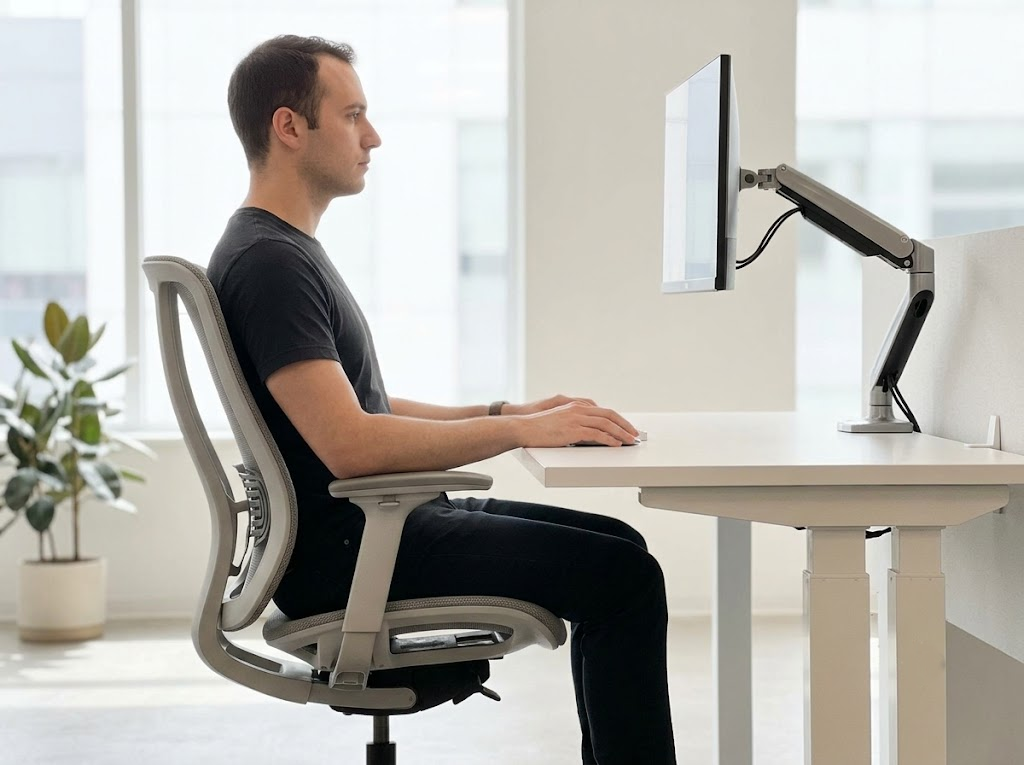
A monitor arm helps almost anyone who spends hours at a screen, though in some situations it’s close to a must-have. Here is how to tell where you land.
Remote and hybrid workers
Home setups rarely get the ergonomic oversight an office provides, so many remote workers drift into forward-head postures at kitchen tables and on secondhand desks. A monitor arm brings the screen to the right height, regardless of what furniture sits underneath it.
Dual-monitor and ultrawide users
Two screens or one very wide screen invite constant head turning when they sit flat on the desk. Arms let you angle each display inward and hold both at the same height, reducing neck rotation that can lead to stiffness.
People already dealing with neck, shoulder, or back pain
If you finish the day with an ache at the base of your skull or tight shoulders, screen position is often part of the cause. Raising the display to eye level takes a measurable load off the cervical spine and gives sore muscles room to recover.
Anyone with a small or shared desk
When desk space is tight, the wide base of a standard stand is dead weight. An arm reclaims that footprint and keeps the surface usable.
You will likely benefit from a monitor arm if you tick two or more of these boxes:
- You sit at a screen for four or more hours a day
- You use two monitors or an ultrawide display
- You switch between sitting and standing
- You feel neck, shoulder, or upper-back tension by afternoon
- Your desk is small, shared, or cluttered
- Your current stand cannot reach eye level
>>> Read more: How to Make Your Office Chair More Comfortable
Common Setup Mistakes to Sidestep
Even a good arm underperforms when you rush the setup. The usual slips:
- Raising the screen too high when standing, which tips the head back and strains the neck
- Leaving a second monitor flat instead of angling it inward
- Skipping the tension adjustment, so the screen drifts down through the day
- Over-tightening a clamp on a soft-surface desk
- Setting the monitor before the chair, so your body ends up chasing the screen
A quick posture check each morning catches most of these before they turn into an ache that ruins your day.
Set Up Your Workspace With Us
At Ergo Global, we help individuals and organizations build workstations that support long-term health and performance. Getting a monitor arm right is one piece of a larger picture, and we handle the whole picture.
Our certified team conducts personal assessments, both online and in person, and then tailors your desk, chair, monitor, keyboard, and mouse to your body rather than to a one-size-fits-all template. We have helped more than half a million employees across over 100 companies feel better and work smarter, and we would be glad to do the same for you or your team.
Ready to work in comfort? Reach out to us for an ergonomic assessment and let us fine-tune your setup, monitor arm, and all.