

Whether you play casually after work or compete in marathon sessions over the weekend, how you sit, where you look, and how you position your hands all have a real impact on your body.
Gaming ergonomics has become an increasingly important area of focus as more people spend extended hours at their setups, and for good reason. Poor posture and repetitive motions during gaming can lead to chronic pain, nerve issues, and musculoskeletal injuries that affect your daily life well beyond the screen.
The good news is that most of these problems are preventable. With a few intentional adjustments to your gaming station, you can protect your body while still enjoying long sessions comfortably.
Why Gamers Are at Risk for Injury
Gaming places unique demands on the body. Unlike general office work, gaming often involves rapid, repetitive hand and wrist movements, sustained intense focus that discourages breaks, and prolonged periods of sitting in a single position. These factors combine to increase the risk of several conditions.
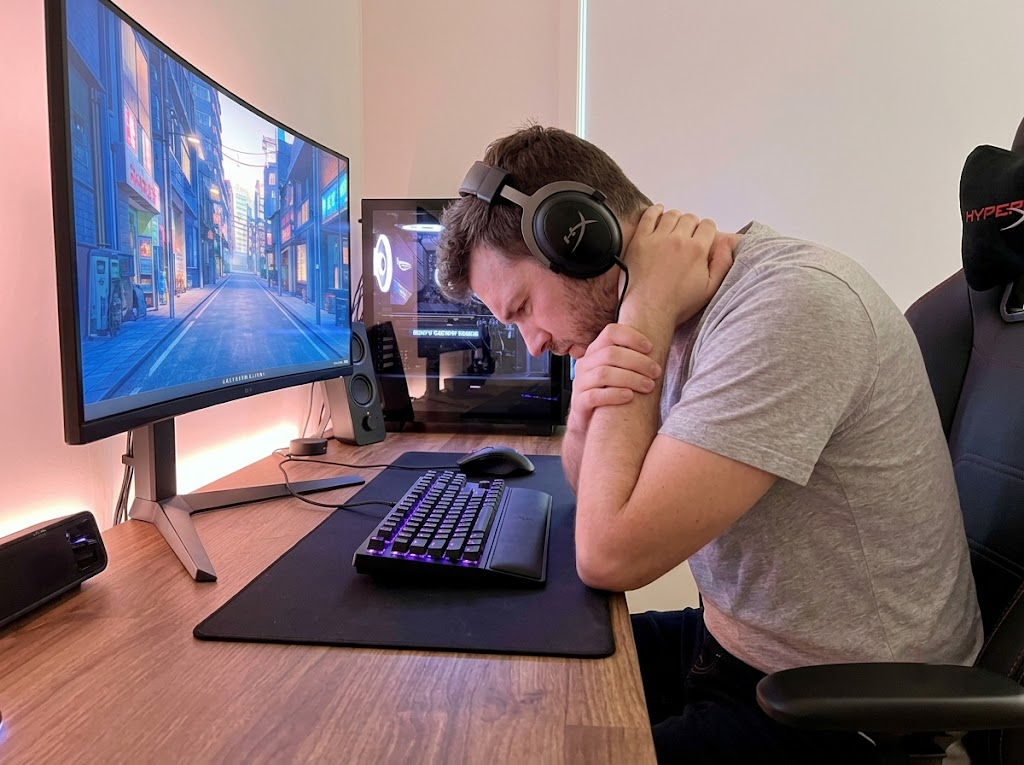
Common gaming-related injuries include:
- Carpal tunnel syndrome — Compression of the median nerve in the wrist, often caused by extended keyboard and mouse use in a poor wrist position.
- Tennis elbow (lateral epicondylitis) — Inflammation in the forearm tendons from repetitive gripping and clicking.
- Text neck and cervical strain — forward-head posture from looking down at a monitor positioned too low.
- Lower back pain — Sitting without proper lumbar support for hours can lead to disc compression and muscle fatigue.
- De Quervain’s tenosynovitis — Inflammation of the tendons on the thumb side of the wrist, common among controller users.
A study published by the National Institutes of Health found that esports athletes experience musculoskeletal pain at rates comparable to traditional athletes, with the back, neck, and wrists being the most frequently affected areas.
The reality is that your body treats a 6-hour gaming session the same way it treats a 6-hour desk shift. The mechanical stresses accumulate, and without proper gaming ergonomics, injury becomes a matter of when, not if.
>>> Read more: What Does an Ergonomic Assessment Involve?
Setting Up Your Chair for Proper Support
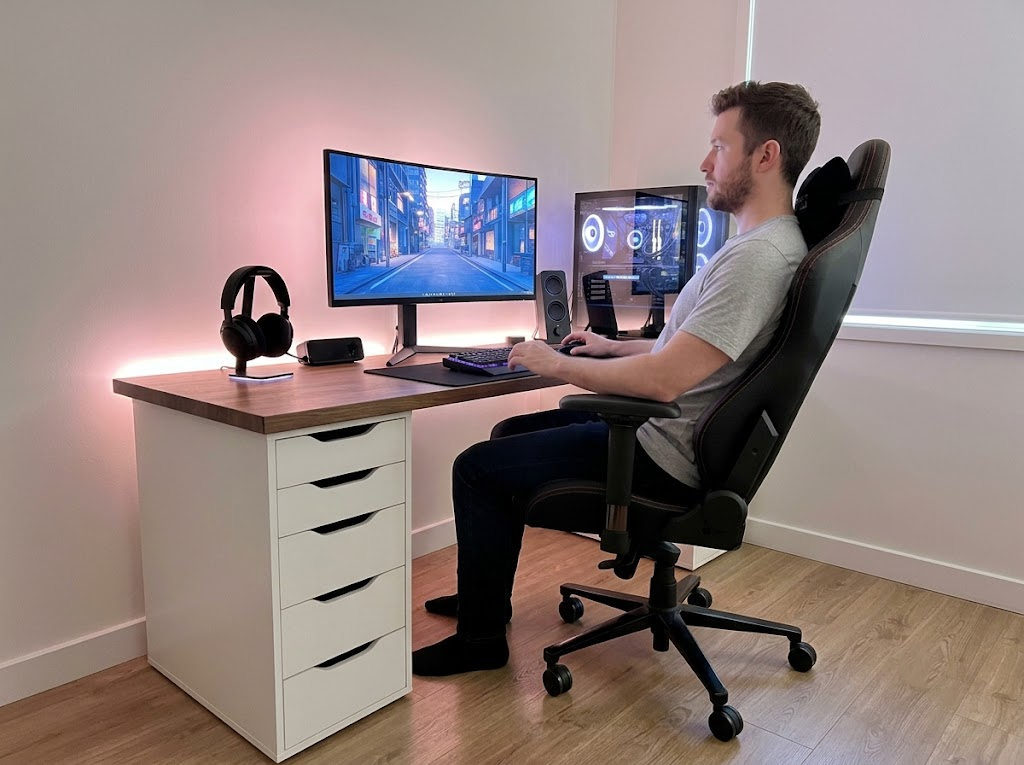
Your chair is the foundation of your entire setup. No amount of monitor adjustment or peripheral upgrades will compensate for a chair that leaves your spine unsupported.
Seat Height
Adjust your chair height so that your feet rest flat on the floor and your thighs are roughly parallel to the ground. Your knees should be at approximately a 90-degree angle. If your chair is too high and your feet dangle, use a footrest to keep them at a comfortable height.
Lumbar Support
Your lower back has a natural inward curve. A good gaming or ergonomic chair should support this curve with built-in lumbar adjustment. If your chair lacks this feature, a lumbar roll or even a rolled-up towel placed at belt level can help maintain the curve and reduce strain on your lower spine.
Seat Depth
The front edge of your seat should sit about two to three finger-widths behind your knees. If the seat pan is too deep, it will press against the back of your knees, restrict blood flow, and force you to slouch forward away from the backrest.
Armrests
Position your armrests so that your shoulders remain relaxed and your elbows rest at roughly a 90-degree angle. Armrests that are too high will push your shoulders upward and create tension. Armrests that are too low will cause you to lean to one side or hunch forward.
Quick checklist for chair setup:
| Adjustment | Target Position |
| Seat height | Feet flat, thighs parallel to floor |
| Lumbar support | Supporting the natural lower back curve |
| Seat depth | 2–3 finger-widths gap behind knees |
| Armrests | Elbows at ~90°, shoulders relaxed |
| Recline | Slight recline of 100–110° |
A slight recline of around 100 to 110 degrees has been shown to reduce disc pressure in the lumbar spine compared to sitting bolt upright at 90 degrees, as noted in research from the Radiological Society of North America.
>>> Read more: 7 Benefits of Ergonomics in the Workplace
Monitor Placement and Eye Health
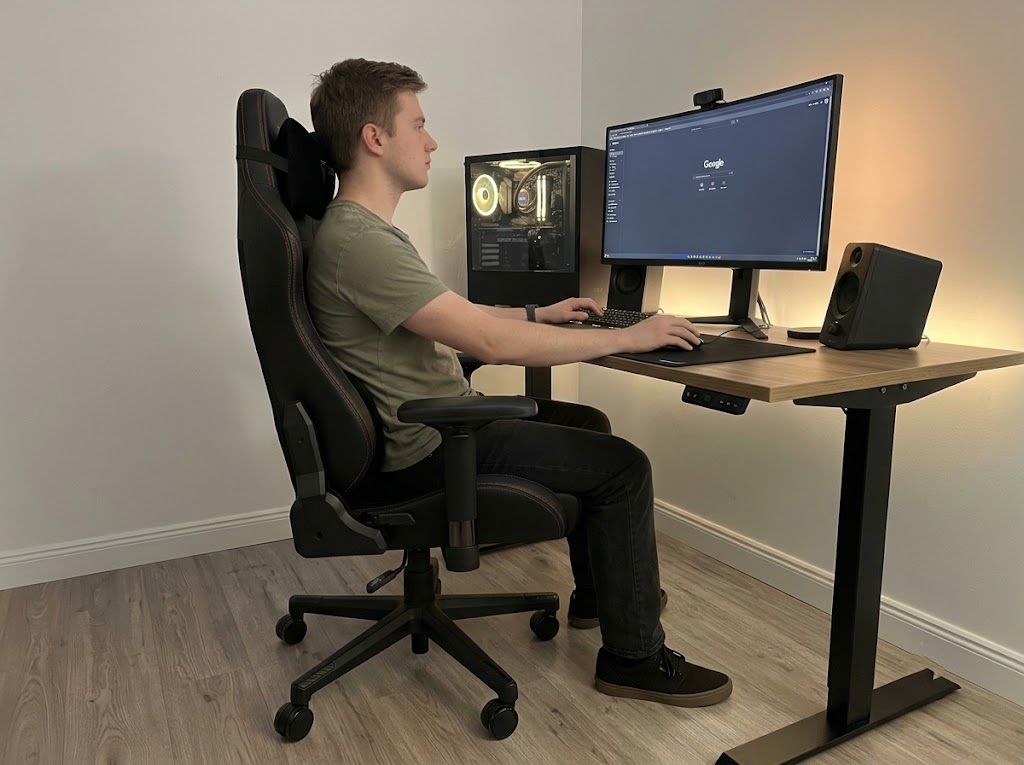
Where you place your monitor determines your head and neck posture throughout your entire session. Poor monitor positioning is one of the most common gaming ergonomics mistakes and one of the easiest to fix.
Height and Distance
The top of your screen should sit at or just slightly below eye level. This allows you to look straight ahead or slightly downward without tilting your head. Position the monitor about an arm’s length away from your face, roughly 20 to 26 inches.
Tilt and Angle
Tilt the monitor slightly backward, around 10 to 20 degrees, so the screen faces you squarely. If you use a curved ultrawide monitor, position yourself at the center of the curve so the edges of the screen are equidistant from your eyes.
Dual Monitor Considerations
If you use a dual-monitor setup, position the primary gaming monitor directly in front of you. Place the secondary monitor at an angle to the side. Avoid centering yourself between the two monitors, as this forces you to turn your head constantly in both directions.
Reducing Eye Strain
Beyond positioning, consider these additional steps to protect your eyes during long sessions:
- Follow the 20-20-20 rule. Every 20 minutes, look at something 20 feet away for at least 20 seconds.
- Adjust screen brightness to match the ambient lighting in your room. A screen that is significantly brighter than your surroundings causes your eyes to work harder.
- Enable a blue light filter during evening sessions to reduce the impact on your sleep cycle.
- Keep your screen clean. Dust and smudges reduce clarity and force you to squint.
Keyboard and Mouse Positioning
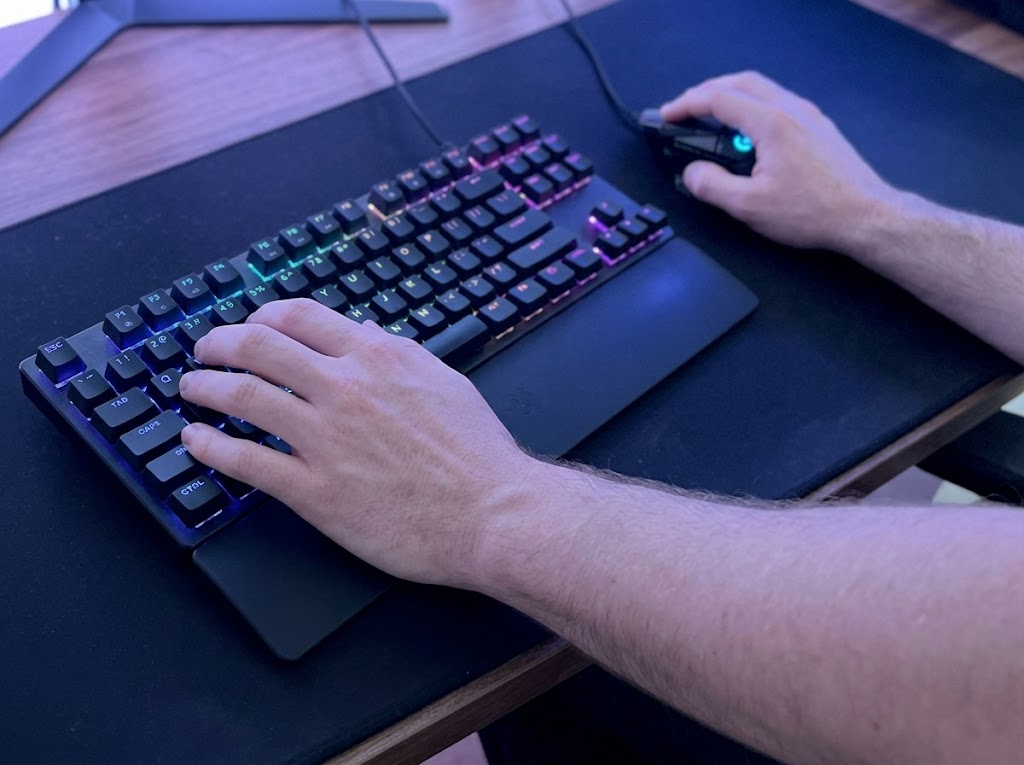
Your hands and wrists take on enormous workloads during gaming. Proper peripheral placement protects the small joints and tendons that are most vulnerable to repetitive strain.
Keyboard Placement
Place your keyboard so that your elbows stay close to your sides and bent at approximately 90 degrees. Your wrists should remain in a neutral position, meaning they are not bent upward, downward, or sideways. Many gaming keyboards come with flip-out feet on the back, but raising the back of the keyboard can actually increase wrist extension and strain. A negative tilt, where the front of the keyboard is slightly higher than the back, is generally a more wrist-friendly option.
Mouse Placement
Position your mouse at the same height as your keyboard and close enough that you do not need to reach forward or out to the side. Reaching for your mouse pulls your shoulder forward and creates tension across your upper back and neck.
Wrist Rests
A wrist rest can be helpful, but only if used properly. Rest the heel of your palm on it during pauses, not while actively typing or clicking. Pressing your wrist into a rest while your fingers move creates compression in the carpal tunnel and increases your risk of nerve issues.
Controller Users
If you game with a controller, hold it with relaxed hands. A tight grip over extended periods contributes to thumb and forearm strain. Take breaks to stretch your fingers and shake out tension.
Desk Setup and Organization
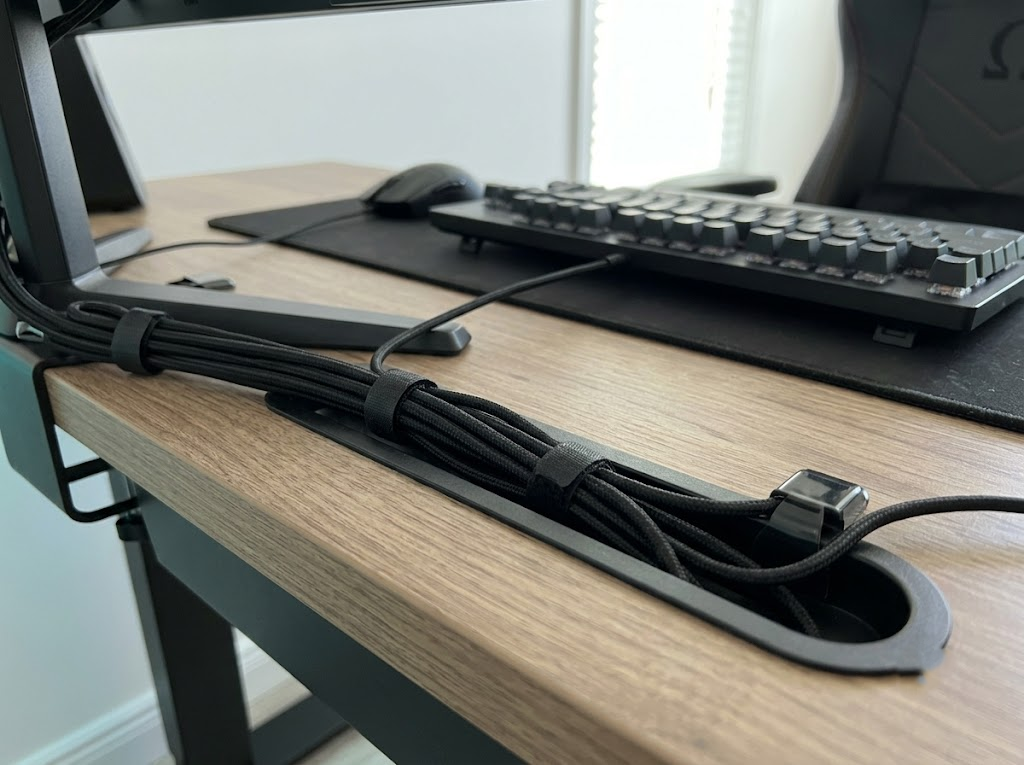
The surface you game on plays a larger role in your comfort than you might expect. A desk that is too high or too low will throw off the alignment of everything else in your setup.
Desk Height
A standard desk height of about 28 to 30 inches works for many people, but the ideal height depends on your body proportions. When seated with your feet flat and your elbows at 90 degrees, your forearms should rest comfortably on the desk surface or hover just above it without your shoulders hiking upward.
Cable Management
Loose cables can restrict your mouse movement and create subtle resistance that causes you to tense your arm muscles. Use cable clips, bungees, or routing channels to keep your mouse cable free and your desk surface uncluttered.
Keeping Frequently Used Items Within Reach
Anything you use regularly during a session, such as your headset, drink, phone, or controller, should be within arm’s reach without stretching. Repeated reaching and twisting away from your center adds up over time.
The Role of Breaks and Movement
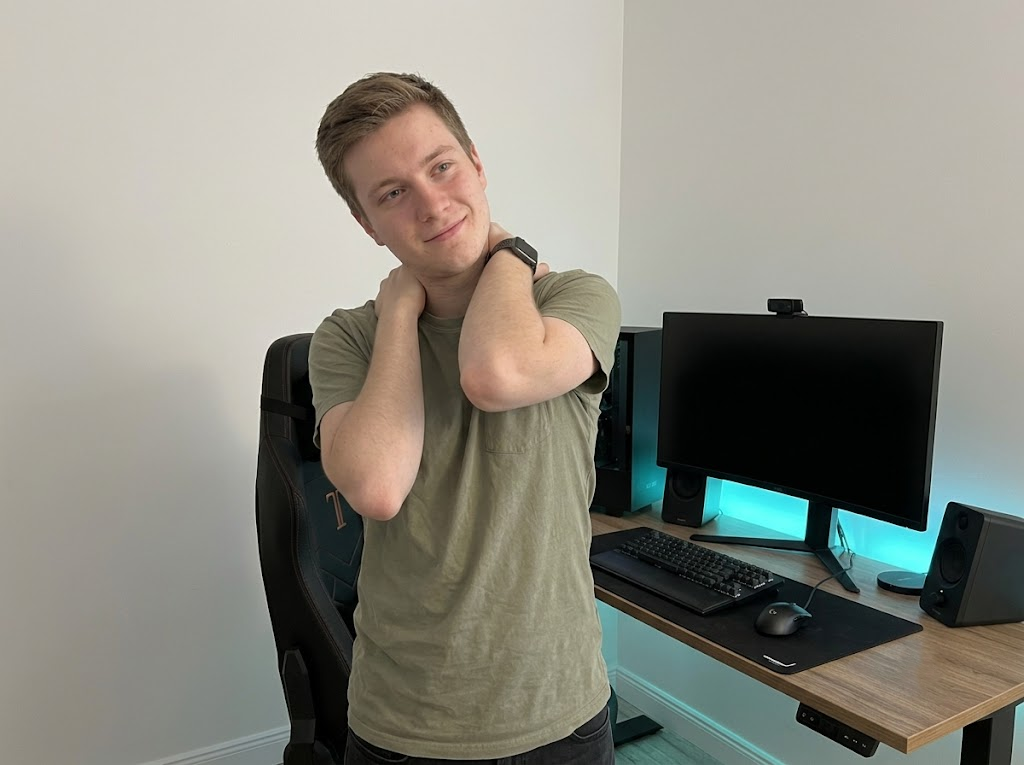
Even the most perfectly optimized station will not fully protect you if you sit motionless for hours. The human body was not designed for sustained static postures, no matter how well-supported they are.
Microbreaks
Every 30 to 45 minutes, take a brief microbreak. Stand up, walk around, and let your muscles reset. These breaks can be as short as one to two minutes and still make a measurable difference.
Stretching Between Matches
Use loading screens and queue times to stretch your wrists, neck, and shoulders. A few simple movements can maintain circulation and reduce stiffness.
Five quick stretches for gamers:
- Wrist flexor stretch — Extend your arm with your palm up and gently pull your fingers back toward your body. Hold for 15 seconds per hand.
- Neck lateral tilt — Slowly tilt your ear toward your shoulder. Hold 15 seconds per side.
- Chest opener — Clasp your hands behind your back and gently lift while squeezing your shoulder blades together. Hold 15 seconds.
- Seated spinal twist — Sit upright, place one hand on the opposite knee, and gently rotate your torso. Hold 15 seconds per side.
- Finger tendon glides — Start with your fingers straight, then slowly curl them into a fist and back. Repeat five times.
These may seem small, but the Cleveland Clinic recommends regular stretching as an effective way to reduce stiffness, improve range of motion, and prevent repetitive strain injuries.
Lighting and Environment
Gaming ergonomics extends beyond your chair and desk. The environment you play in affects your comfort, focus, and physical well-being.
Room Lighting
Avoid gaming in a completely dark room. The contrast between a bright screen and a dark environment forces your pupils to constantly adjust, which accelerates eye fatigue. Use bias lighting, a soft light placed behind your monitor, to reduce this contrast without creating screen glare.
Room Temperature
A room that is too warm encourages slouching and fatigue. A slightly cool and well-ventilated room helps you maintain alertness and better posture throughout a session.
Noise and Audio
If you use a headset for long periods, select one with comfortable padding that does not clamp too tightly on your head. Excessive clamping force can cause headaches and discomfort around the jaw and temples.
Invest in the Right Gear
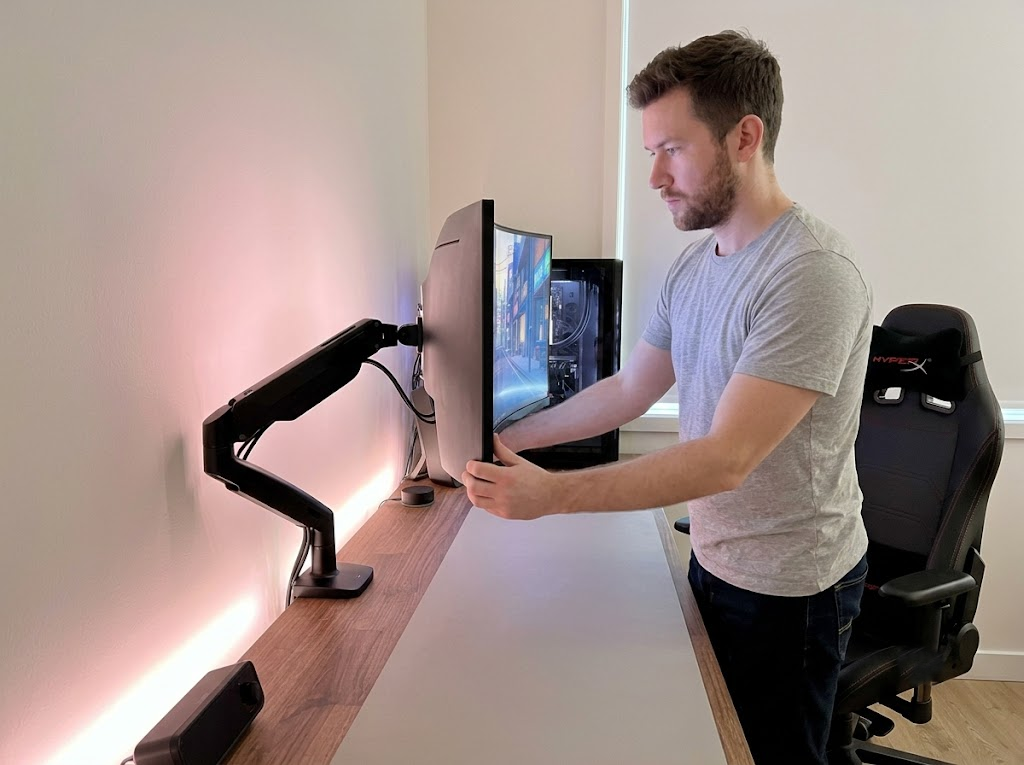
You do not need to spend thousands to build an ergonomic gaming station, but a few targeted investments can go a long way.
Recommended upgrades ranked by impact:
- An adjustable ergonomic chair with lumbar support and adjustable armrests.
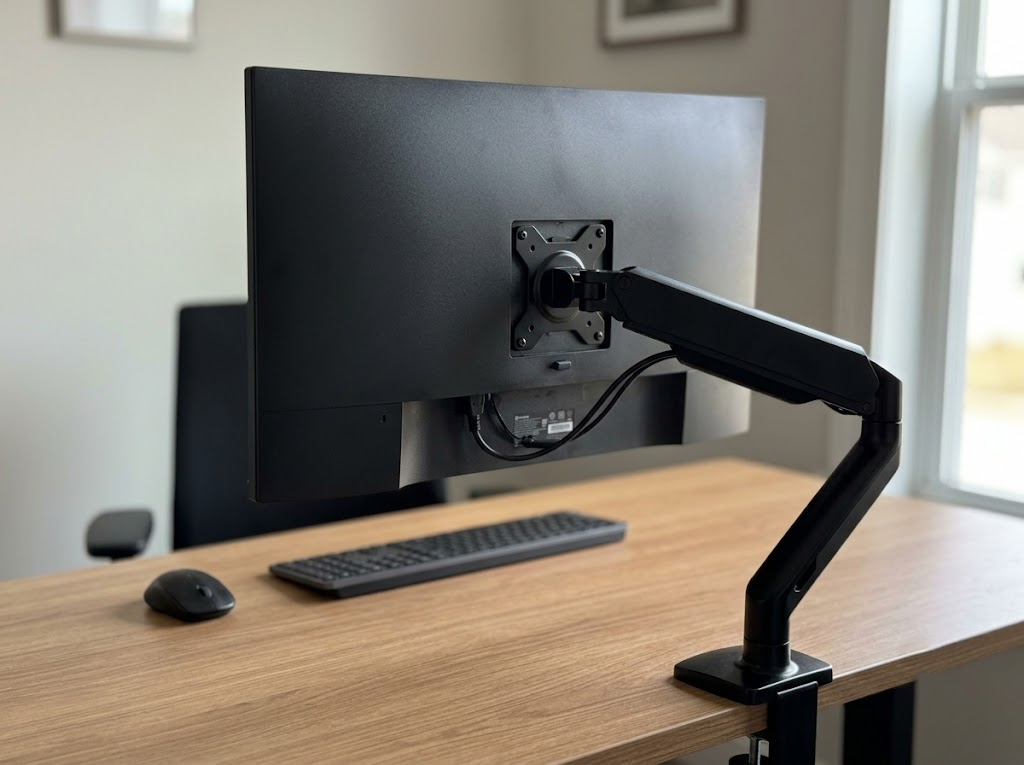
- A monitor arm that lets you position your screen at the right height and distance, with the flexibility to adjust.
- An ergonomic mouse that supports a more natural hand position, such as a vertical or contoured model.
- A desk at the proper height, or an adjustable desk that allows you to alternate between sitting and standing.
- A wrist rest and mouse pad with padding for resting during pauses.
The right gear supports your body, but the way you use it matters just as much. The most expensive chair on the market will not help if it is not adjusted to fit your body.
How Ergo Global Can Help You Game Without Pain
At Ergo Global, we work with individuals and organizations to create setups that protect the body and improve comfort during prolonged screen time.
Our team of certified ergonomics consultants understands the specific demands that gaming places on the body, and we provide personalized assessments that go far beyond generic advice.
We evaluate your posture, equipment, habits, and physical history to build a customized plan that fits how you actually play.
Whether you are a competitive gamer dealing with recurring wrist pain or a streamer looking to set up a station you can use comfortably for years, we can help. Our virtual and on-site assessment options make professional guidance accessible wherever you are. Gaming should be something you enjoy without paying for it with your health.
Ready to optimize your setup? Schedule an ergonomic assessment with Ergo Global today and start playing smarter.