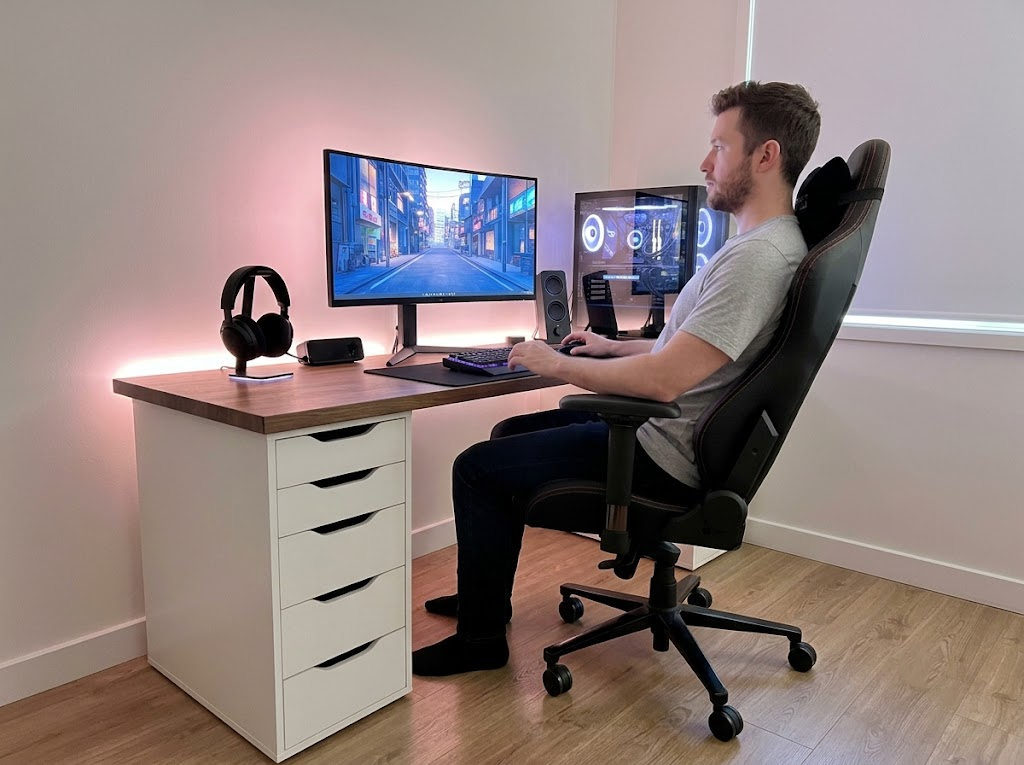


If you spend most of your working day in front of a screen, your body is absorbing a significant and often underestimated amount of physical stress. Sitting in the wrong posture, reaching awkwardly for a keyboard, or staring at a monitor that is too high or too low can slowly build into serious pain and injury.
Ergonomics for computer users is the practice of designing your workspace and daily habits to fit your body, reduce accumulated stress, and keep you performing at your best for years to come.
Why Ergonomics for Computer Users Matters More Than Ever
Remote work, hybrid schedules, and longer screen hours have fundamentally changed how the world works. Millions of people now spend eight or more hours a day at a desk, and a large proportion of those desks are simply set up incorrectly. The result is a global rise in musculoskeletal disorders, repetitive strain injuries, eye strain, and chronic fatigue.

These conditions develop gradually, which is exactly why so many people ignore the warning signs until the discomfort becomes genuinely disabling. In the United States alone, the private sector recorded over 937,000 musculoskeletal disorder cases requiring days away from work in 2023–2024, with the economic toll landing between $45 billion and $54 billion annually. Companies with active ergonomics programs have recorded a 25% increase in productivity, a 58% reduction in absenteeism, and a 48% reduction in employee turnover.
The Most Common Ergonomics Problems Caused by Poor Workstation Setup

More than 80% of office workers experience work-related musculoskeletal disorders, with the neck, lower back, and shoulders the most frequently affected regions.
Neck and Upper Back Pain
A monitor that is too low or too far away forces the head forward and downward for hours at a time, placing enormous strain on the cervical spine. Neck pain is the single most common musculoskeletal complaint among office workers, affecting nearly 6 in 10.
Lower Back Pain
A chair that fails to support the lumbar spine, combined with the habit of slouching, compresses the spinal discs and creates chronic muscle tension in the lower back. More than half of desk workers report lower back pain, with a direct link identified between chair height and symptoms across multiple body regions.
Wrist and Hand Injuries
Typing with the wrists bent upward or resting on a hard surface compresses the nerves and tendons running through the wrist channel over time. Prolonged computer use and awkward postures are two of the strongest predictors of wrist and upper limb injury among desk workers.
Eye Strain and Headaches
Glare, low contrast, improper monitor distance, and prolonged exposure to blue light all contribute to dry eyes, blurred vision, and headaches. Across more than 66,500 screen users worldwide, the prevalence of computer vision syndrome is around 69%.
Fatigue and Reduced Productivity
When the body works against an uncomfortable environment, it expends extra energy compensating for ongoing strain. Workers logging more than 7 hours of daily screen time report higher rates of musculoskeletal symptoms across all regions of the body than those with shorter exposure.
10 Tips to Improve Ergonomics for Computer Users
The following tips cover every layer of a well-designed workstation. Work through them in order, where possible, since many settings build on one another.
Tip 1: Start With a Workstation Assessment
Before making any adjustments, walk through the space with fresh eyes. Note where the screen sits relative to windows, how much natural light is present, and whether noise or clutter is affecting the environment. Light, sound, and layout all contribute to physical strain in ways that equipment changes alone cannot fix.
Tip 2: Adjust Your Chair Before Anything Else
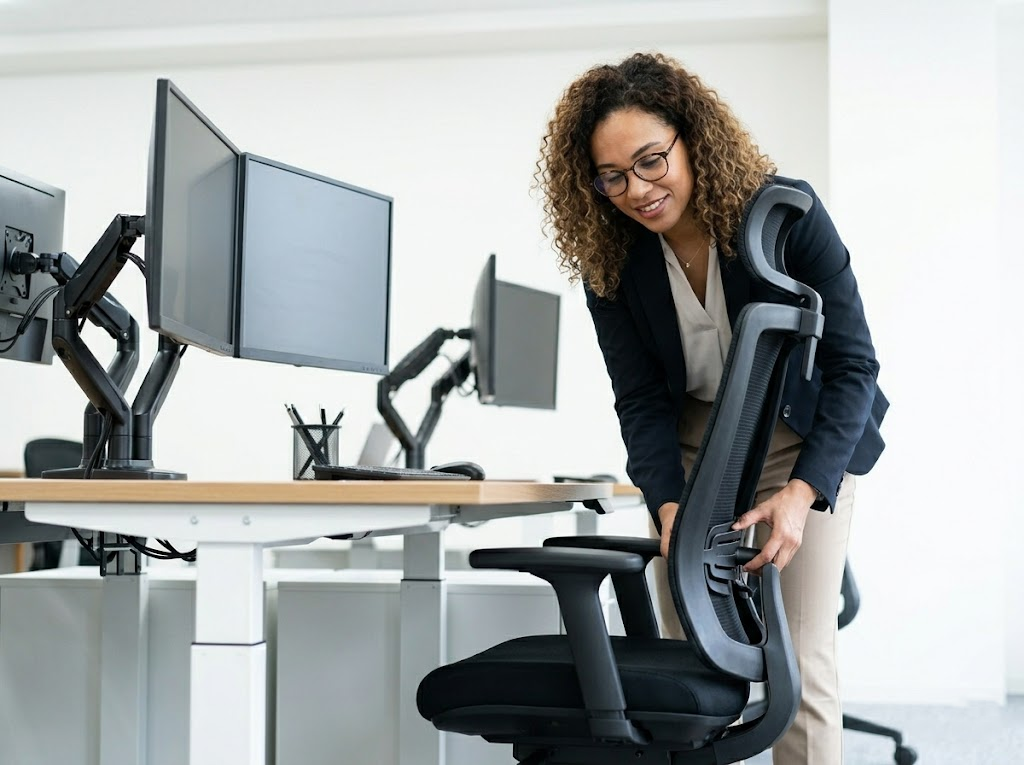
The office chair is the foundation of computer workstation ergonomics. Everything else is calibrated from it.
A good ergonomic chair should include:
- An adjustable seat height so feet rest flat on the floor (or on a footrest)
- Lumbar support positioned at the lower curve of the spine
- A seat depth that does not press against the back of the knees
- Adjustable armrests that allow the elbows to rest at roughly 90 degrees
- Breathable upholstery and a stable five-point base
Once the chair is properly set, the thighs should be roughly parallel to the floor, the back supported and slightly reclined, and the shoulders relaxed without hunching or reaching.
Tip 3: Set Up Your Desk and Monitor at the Right Height
The top of the screen should sit at or just below eye level, at a viewing distance of 50 to 70 cm. Height-adjustable desks allow workers to shift between seated and standing positions throughout the day, reducing the strain of sustained static posture.
Tip 4: Choose the Right Keyboard and Mouse

The keyboard should sit flat or with a slight negative tilt to keep wrists in a neutral position, placed far enough from the desk edge for the forearms to rest. A vertical mouse keeps the forearm in a more natural orientation and reduces lateral reach.
Tip 5: Manage Screen Brightness and Color Temperature
Match screen brightness to the ambient light in the room to reduce eye fatigue. Warmer color temperatures in the evening are easier on the eyes, and tools like f.lux can automate this. Matte screen surfaces reduce glare compared to glossy alternatives.
Tip 6: Use a Document Holder if You Reference Physical Materials
Repeatedly looking down at documents on the desk strains the cervical spine over time. A document holder positioned beside or just below the monitor keeps reference materials at screen level, reducing neck rotation and downward head tilt throughout the workday.
Tip 7: Consider Headsets for Phone-Heavy Work
Holding a phone against the shoulder while typing is a consistent source of neck strain. A headset frees both hands, keeps the neck aligned, and reduces overall upper body tension. Wireless options support standing or moving during calls.
Tip 8: Take Structured Breaks and Vary Your Activity

The general recommendation for intensive screen work is a five-minute break every hour, or a fifteen-minute break every two hours. Use breaks to stand, walk briefly, stretch the back and shoulders, and rest the eyes by focusing on something in the distance.
Tip 9: Learn and Practice Correct Seated Posture
Equipment can only do so much. Posture is a habit, and habits take consistent effort to change. For computer users building better ergonomic practices, here is a straightforward reference:
- Feet flat on the floor or on a footrest
- Knees at roughly 90 degrees, thighs parallel to the floor
- Lower back supported by the chair’s lumbar support
- Elbows at 90 to 135 degrees, close to the body
- Wrists straight and relaxed, not bent upward or downward
- Shoulders relaxed and down, not raised or hunched
- Head level, eyes aligned with the top third of the screen
- Avoid crossing your legs for extended periods
Transitioning to correct posture after years of poor habits may feel uncomfortable at first. That initial discomfort is normal. Gradually adjusting and allowing the body time to adapt is far more effective than attempting a complete overhaul overnight.
Tip 10: Involve Your Team in Workstation Planning
Ask employees what is not working before purchasing new furniture or equipment. Comfort and fit are deeply individual, and gathering feedback before committing to large purchases leads to better outcomes and signals to staff that their well-being is genuinely valued.
When to Get Professional Ergonomic Support

DIY adjustments can take you a long way, but for anyone already dealing with pain, working in a demanding environment, or managing injury risk across a team, a professional ergonomics assessment delivers results that go beyond self-guided changes. A qualified consultant evaluates your specific workspace, movement patterns, and physical needs, then provides tailored recommendations built around your actual situation.
About Ergo Global
At Ergo Global, we are passionate about making workplaces healthier and more productive through expert ergonomics consulting. We work with individuals, remote workers, and organizations of all sizes to assess workstations, identify injury risks, and deliver practical, personalized solutions. Our consultants combine deep knowledge of human physiology with real-world workplace experience, so every recommendation is grounded in both science and practicality.
We believe that good ergonomics for computer users should be accessible to everyone, regardless of budget or business size.
Ready to work pain-free?
Contact us today and book your ergonomics assessment.