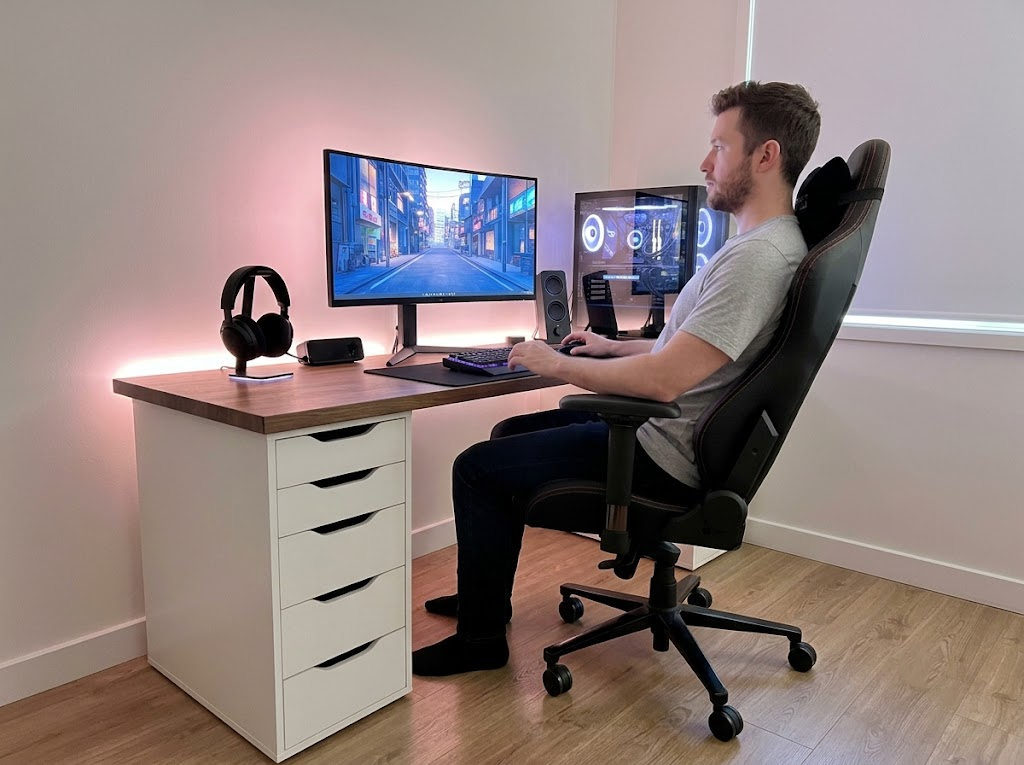


There is a particular kind of ache that desk workers know well. It starts as mild tension in the forearm, maybe a little stiffness around the wrist. Then it becomes something you notice every afternoon, and eventually something that follows you home. Most people assume it is just part of spending long hours at a computer.
It is not. And more often than not, the source is sitting right there on your desk.
Understanding basic mouse ergonomics will not fix everything overnight, but it explains a lot about why the pain starts in the first place and gives you a practical place to begin.
What Is a Standard Mouse Actually Doing to Your Arm?
The average flat computer mouse was designed to be functional and easy to manufacture. How the human forearm actually rests and moves was not really part of the brief. When you put your hand on a regular mouse, the forearm rotates inward so the palm faces the desk. That rotation has a name: forearm pronation.
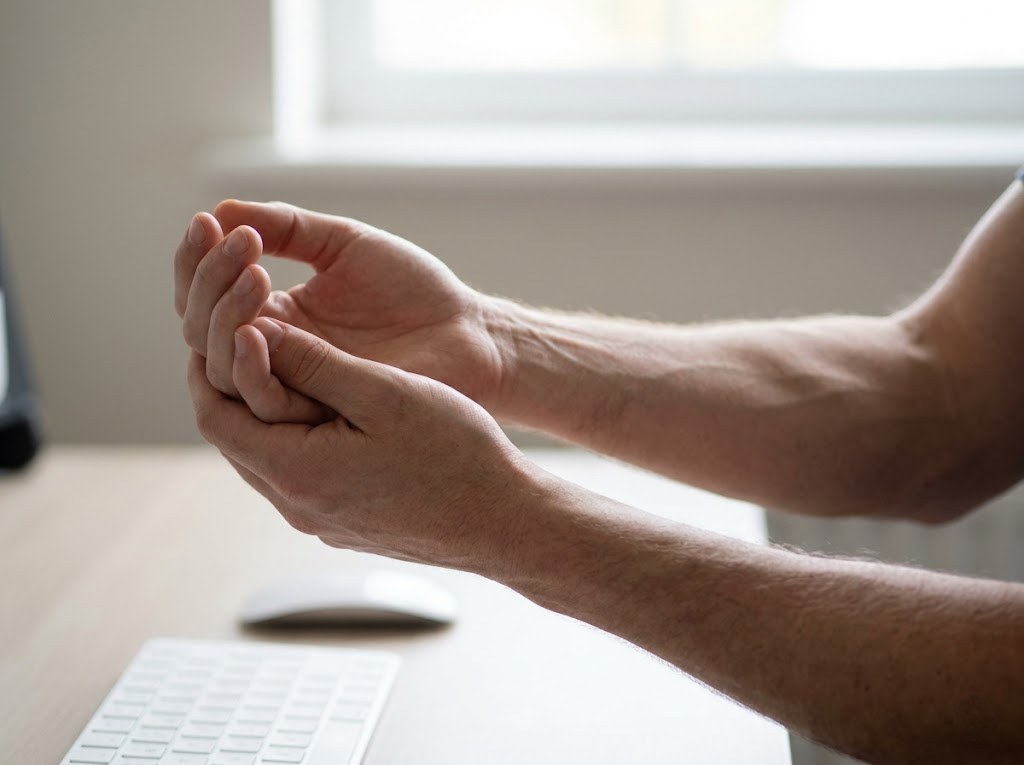
The Problem With Forearm Pronation
When your arms hang loose at your sides, they naturally sit in a relaxed middle position, somewhere between a palm-down and a handshake orientation. That is the forearm’s comfortable resting state. A flat mouse pulls the forearm away from that position and holds it there, often for hours at a stretch.
A controlled research trial on mouse design found that standard flat mice are directly associated with higher levels of forearm pronation, wrist deviation, and muscle activity across the forearm and shoulder. Participants using a mouse with even a mild 25 to 30-degree slant showed measurably lower muscle activation throughout.
Ergonomics researchers at Cornell University have also been clear on this: the human wrist was not designed to rest flat on a hard surface for long periods. Full pronation forces both wrist extension and forearm rotation simultaneously, creating steady, low-level tension in the muscles and soft tissues of the arm throughout the workday.
What Clicking Does Over Time
Forearm pronation is one part of the problem. The sheer volume of repetitive clicking is the other.
Research estimates that a typical office worker performs around one million mouse clicks a year. Each individual click activates the tendons running through the wrist and fingers, and fine, repetitive movements at that scale cause microscopic damage to the tendons and muscles of the forearm and wrist, which accumulates slowly over time.
There is also a pressure element worth knowing about. Measurements within the carpal tunnel show that simply resting the hand on a mouse raises internal wrist pressure from around 5 mmHg at rest to 17-19 mmHg. Active clicking and dragging push that to 29-33 mmHg. Held across a full working day, that pressure gradually compresses the median nerve and produces the tingling, numbness, and aching that many desk workers recognize.
Signs Your Wrist Is Trying to Tell You Something

Mouse-related wrist pain tends to develop gradually, making it easy to dismiss as general tiredness. These are the signals that are worth taking seriously:
- A dull ache in the wrist or forearm that appears toward the end of the day
- Forearm stiffness that takes a while to ease in the morning
- Tingling or a pins-and-needles feeling in the thumb, index, or middle fingers
- Pain that travels up from the hand toward the elbow or shoulder
- Discomfort that lingers through the weekend or disturbs sleep
The sooner these signals get attention, the easier they are to address.
How to Actually Hold a Mouse
A lot of the damage from poor mouse ergonomics comes down to habit, and habits are changeable. Here is what the research points to.
Keep the Grip Relaxed
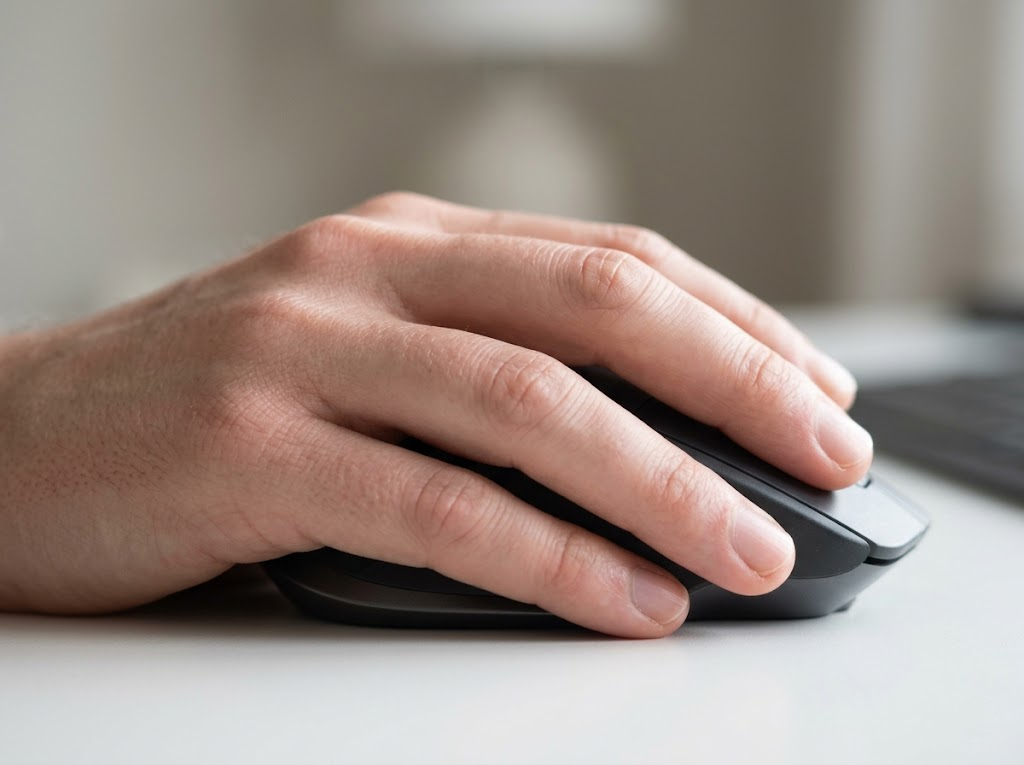
The University of Pittsburgh’s ergonomics guidance recommends holding the mouse lightly, with no finger gripping or tension. Tight gripping is one of the most common things people do not notice themselves doing, particularly when they are focused on a task or working quickly.
A relaxed grip means the full palm rests softly on the mouse body, and the fingers make light contact with the buttons. Take a quick look at your hand right now. If only the fingertips are touching, or if the knuckles look raised and tense, try consciously softening everything.
The Three Mouse Grips
Most people hold a mouse in one of three ways, and knowing which one you use can help you understand how to refine it:
| Grip | What it looks like | Good for |
| Palm grip | Full palm and fingers rest on the mouse | Long office sessions |
| Claw grip | Knuckles arch up, fingertips click | Speed and precision tasks |
| Fingertip grip | Only fingertips touch, palm stays lifted | Fine control, larger hands |
For most desk workers, the palm grip distributes load most evenly across the hand and is the most comfortable for sustained use.
Move From the Elbow, Not the Wrist
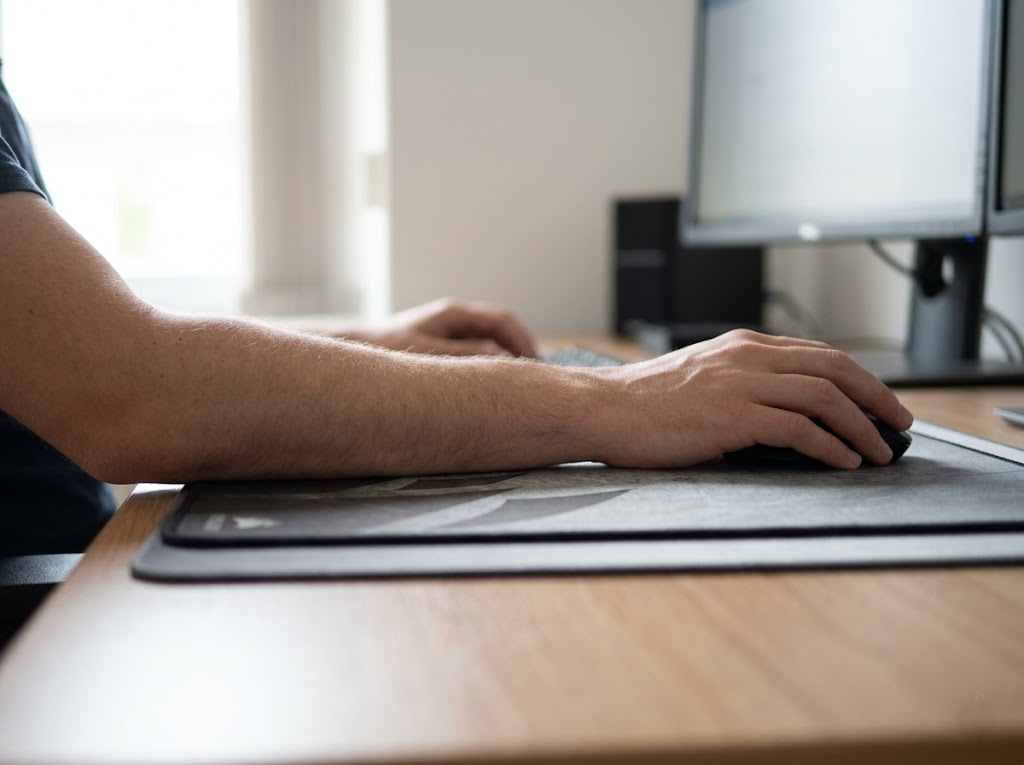
This is probably the most overlooked habit in everyday mouse use. Most people flick the mouse with the wrist, which constantly pulls the wrist out of its neutral position throughout the day.
Ergonomists consistently recommend using the elbow as the pivot point instead, guiding the mouse with the forearm in broader, more controlled movements. The wrist stays straight and aligned with the forearm throughout, which is exactly where it needs to be.
Where the Wrist Should Sit
During active mousing, the wrist should remain straight and neutral, with no upward, downward, or sideways bending. The Mayo Clinic’s office ergonomics guide recommends keeping hands at or just below elbow level throughout.
One habit that trips a lot of people up is resting the wrist on the desk while moving the mouse. That contact point presses the underside of the wrist against a hard surface, increasing pressure on the carpal tunnel. A brief rest during pauses is fine, but during active movement, the wrist should stay slightly lifted.
Your Desk Setup Matters Too
Even with good mouse habits, a poorly arranged desk and chair will work against you. Mouse ergonomics connects directly to your overall sitting posture, and getting the basics right makes everything else easier to maintain.
Chair Height First

The chair sets the foundation. Feet should be flat on the floor or resting on a footrest, thighs roughly parallel to the floor, and elbows bent to around 90 to 110 degrees. The desk should sit at or just below elbow height. If the desk is too high, the shoulder tends to hike upward to compensate, which layers neck and upper back strain on top of the wrist strain already in progress.
Where to Position Your Mouse
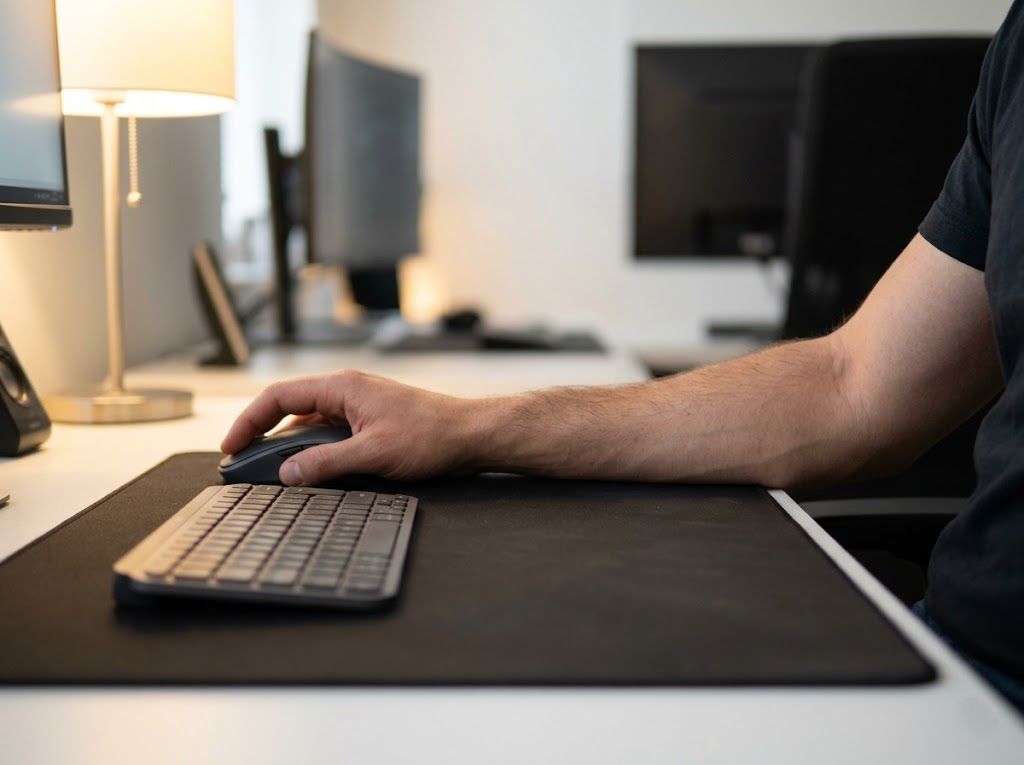
A lot of people place their mouse too far to the side or too far forward, creating a persistent outward reach that pulls the elbow away from the body and puts extra tension on the shoulder.
Ergonomics guidance from Princeton University Health Services notes that regularly reaching for a mouse can contribute to arm strain and even affect spinal alignment over time. The mouse should sit at the same level as the keyboard, close enough to the body that the elbow stays near your side without any noticeable stretch.
A Quick Setup Checklist
Before your next work session, run through this:
- ✅ Feet flat on the floor or on a footrest
- ✅ Chair height set so elbows sit at or just above desk level
- ✅ Mouse and keyboard at the same height, within comfortable reach
- ✅ Elbow at around 90 degrees with the upper arm close to your side
- ✅ Wrist straight and neutral during mouse movement
- ✅ Mouse close to the keyboard without reaching to get to it
- ✅ Grip relaxed, palm resting softly on the mouse body
Would a Different Mouse Help?
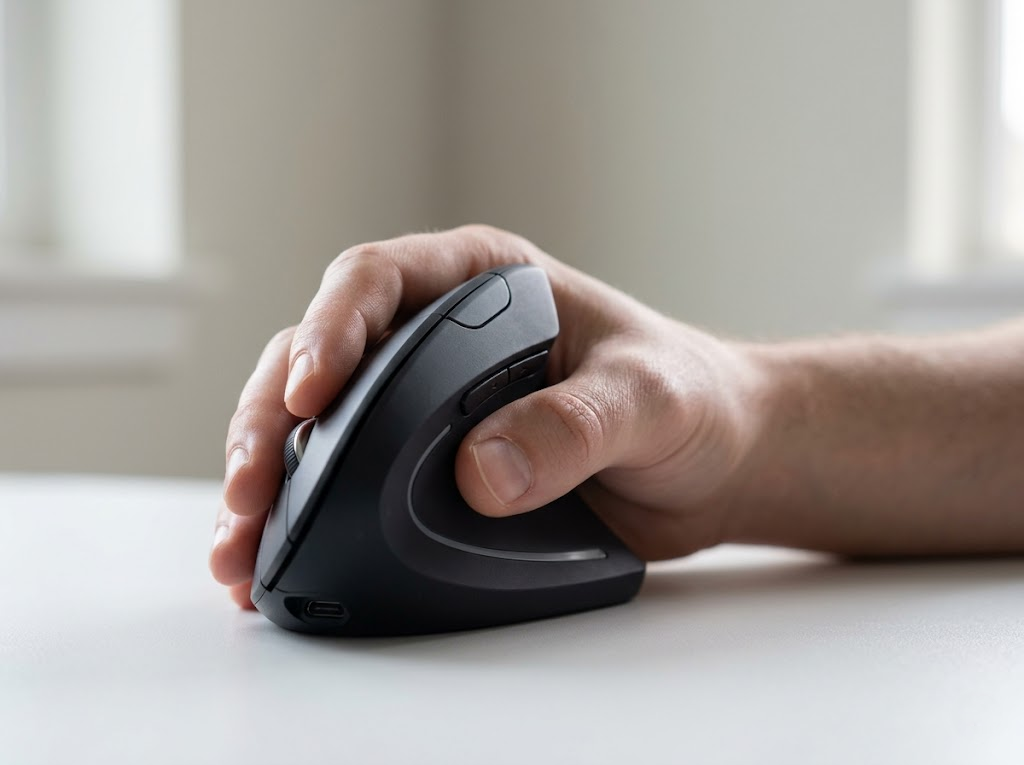
If you have adjusted your technique and setup, and the discomfort persists, the mouse itself is worth looking at. A standard flat mouse will always require some degree of forearm pronation, and that is a design constraint that good habits alone cannot fully overcome.
There are three types of ergonomic mice worth trying:
- Vertical mouse – The hand sits in a handshake position, which maintains the forearm’s natural neutral rotation. A CDC-affiliated evaluation found these produced the least forearm pronation of any mouse design tested.
- Trackball mouse – The device stays stationary while you roll a ball to move the cursor. This removes the repetitive sweeping arm movements entirely, which is well-suited to people whose pain is triggered by back-and-forth or side-to-side motion.
- Slanted or angled mouse – These sit partway between a flat and a fully vertical design, reducing pronation without feeling unfamiliar. A reasonable starting point for anyone new to ergonomic hardware.
Most people adjust to a new mouse design within two to four weeks, and many notice some reduction in discomfort within the first week.
One More Thing Worth Mentioning
Good posture and the right setup take you a long way, but clicking, scrolling, and mouse movement are repeated hundreds of thousands of times over a typical working week. Building in small recovery habits matters too. Short breaks every hour to stretch the forearms, using keyboard shortcuts to reduce mouse dependency, and raising the mouse pointer speed to reduce physical travel distance all make a quiet but real difference over time.
How Ergo Global Can Help
Mouse ergonomics is one part of a bigger picture.
At Ergo Global, we help individuals and organizations identify the root cause of workplace discomfort and build practical, personalized solutions to address it. Our certified ergonomists, many with backgrounds in occupational therapy and physiotherapy, conduct personalized workstation assessments both on-site and virtually, examining mouse and keyboard positioning, chair and desk setup, monitor height, and work habits.
We also offer company-wide ergonomics programs and training for teams who want to get ahead of discomfort before it becomes a bigger problem. Wrist pain does not have to be a normal part of your working day.
Get in touch with the Ergo Global team and let us take a proper look at your setup.