

You sit down at your laptop at 9 am, ready to focus. By 2 pm, your neck is tight, your eyes feel like they’re coated in dust, and the mental sharpness you had in the morning has completely left the building. You assume it’s a heavy workload or not enough sleep.
Often, it’s neither. It’s your laptop.
This isn’t about screen time in general. It’s about something specific to how laptops are physically designed and how that design quietly works against your body all day. Poor laptop ergonomics is one of the most common and most underestimated sources of fatigue in modern desk work.
The Design Trade-Off That Comes With Every Laptop
To understand why laptops are so physically demanding, it helps to start with a piece of computing history that is easy to overlook.
According to Cornell University’s ergonomics research, the very early desktop computers had their screen and keyboard integrated into one unit. This caused so many complaints of musculoskeletal discomfort that by the late 1970s, ergonomic guidelines were published specifically calling for the separation of screen and keyboard. The reasoning was straightforward: if the keyboard was at the right height, the screen wasn’t, and if the screen was right, the keyboard was too high.

The laptop, as convenient as it is, brought that same problem back. The screen and keyboard are fixed together, and as a result, every person using a laptop is working under a constant physical compromise.
Here is what that looks like in practice:
- Raise the laptop to bring the screen to a comfortable eye level. Now the keyboard sits too high, pulling the wrists and shoulders into a strained position.
- Lower the laptop so the keyboard is comfortable to type on. Now the screen drops too low, and the neck bends forward to follow it for hours.
There is no middle setting that gets both right at the same time. That compromise is where the fatigue begins.
How a Small Screen Slowly Wears You Down
Screen size and screen height are two things most people accept without much thought when they open a laptop. Both of them affect your body more than the specs sheet would suggest.
The way your head follows the screen
A laptop screen is smaller than a typical desktop monitor, and it sits lower. Together, those two things draw your body forward. Once the screen drops below your natural line of sight, your head tends to follow, and the head carries more weight than most people would guess.

Research on laptop posture shows that when your gaze drops 30 to 45 degrees to view a flat laptop on a desk, the effective load on your cervical spine increases sharply. A head balanced directly above the spine places roughly 4-5 kilograms of strain on the neck. Tilt that same head forward by 45 degrees, and the load rises to around 22 kilograms. Your neck muscles were not designed to hold that position for hours at a stretch.
The result is the familiar tight band of tension that settles across the base of your skull and upper shoulders during the day. Because it builds gradually, it is easy not to notice until it is already well established.
When small text starts costing more than you realize
Smaller screens tend to mean smaller text. Smaller text tends to trigger squinting. And squinting does more damage to your comfort than it appears to from the outside.
A comprehensive review of digital eye strain published by the NIH found that the blink rate during screen use drops from a normal range of 18 to 22 blinks per minute down to as few as 3 to 7. Squinting contributes directly to this by increasing the muscular effort required for focusing and reducing the natural blinking that keeps the eye surface lubricated.
Over the course of a working day, this leads to:
- Dry and irritated eyes
- Increasingly blurred vision in the afternoon
- Frontal headaches that feel a lot like tension headaches
- A growing difficulty in maintaining focus
The smaller the screen, the sooner this begins.
How tired eyes become a tired mind
There is a closer relationship between visual fatigue and mental fatigue than most people assume. The eyes are not passive screens. They are active, muscular organs that consume substantial cognitive resources when working under strain.

A study published on ScienceDirect tracked eye strain symptoms during prolonged laptop use and found that symptoms worsened more quickly when the task’s cognitive load was higher. The effort of keeping strained eyes focused competes directly with the mental resources you need to think clearly.
This is why the afternoon fog from a day of laptop work tends to feel heavier than ordinary tiredness. The fatigue has a physical origin that quietly draws down cognitive reserves from the first hour onward.
The Trackpad Problem Most People Never Think About
The screen explains a lot. The trackpad explains the rest.
Most laptop users give very little thought to the trackpad beyond basic function. From a musculoskeletal standpoint, though, it is a consistent source of strain that builds over the course of the day.
Why does your shoulder tire even when you’re barely moving
Using a trackpad requires the upper arm to remain relatively still while the fingers make small, precise movements.
Ergonomists refer to this as static loading. Rather than moving through a natural range of motion, the shoulder and upper arm muscles contract and hold the joint in place, maintaining the same position for extended periods without real movement.
Research published in the Human Factors and Ergonomics journal on ScienceDirect measured muscle activity and posture during trackpad versus external mouse use and found that trackpad use required significantly greater upper-arm stabilization. The joints are more restricted and fixed, and that increases biomechanical stress over time.
An external mouse introduces lateral movement across a surface, distributing effort across more muscle groups and allowing small, regular shifts in position. Static holding does neither of those things.
That shoulder tension you’re putting down to stress
Research from Logitech’s ergonomic lab measured neck and shoulder muscle activity in participants using a trackpad compared to an external mouse. When using the trackpad, participants showed a 45% increase in neck and shoulder muscle activity. Forearm muscle activity increased by 25%.
Both findings point in the same direction. The trackpad demands considerably more from your upper body than an external mouse does, and it does so all day, continuously, without any obvious single moment you can point to as the cause. By the end of the day, those muscles are genuinely fatigued, even though nothing that happened looked particularly physical.
Why the Body and the Brain Get Tired Together
This is the piece of laptop ergonomics that does not get talked about enough.
Physical fatigue and mental fatigue are not separate experiences running in parallel. They feed each other. Research on the link between ergonomics and workplace mental health makes this clear: when the body is managing ongoing physical discomfort, the mental energy required to do so draws directly from the same reserves you need for concentration, decision-making, and clear thinking.
Your brain cannot fully separate the effort of managing a stiff neck and tense shoulders from the work you are trying to focus on. When physical stress runs in the background, cognitive performance takes a corresponding hit. Tasks feel heavier than they are. Thinking takes more effort. Small errors start creeping in.
This is what makes poor laptop ergonomics so easy to misread. The symptoms may look like a motivation or workload problem when the underlying cause is physical.
How to Tell If Your Laptop Is Behind the Fatigue
If several of these feel familiar, your setup is likely part of what is tiring you out.
- Neck and shoulder tension that arrives by mid-morning, well before the day gets demanding
- Dull headaches that tend to start around the forehead or temples
- Eyes that feel dry, gritty, or sensitive to light during or after screen time
- A habit of leaning forward or squinting, even when the screen feels reasonably close
- Forearms that feel tense even on days with relatively little typing
- Energy that noticeably drops faster on laptop-heavy days than on days at a proper desktop station
What You Can Actually Do About It
Most laptop ergonomics issues can be addressed without spending much at all.
Start with a laptop stand and an external keyboard

This combination tackles the root problem head-on. Raising the laptop on a stand brings the screen up to eye level, restoring a neutral neck position and eliminating the forward-head posture that accumulates tension throughout the day. Once the screen is raised, the built-in keyboard becomes awkward to reach, which is why pairing the stand with an external keyboard makes the setup work properly. The screen sits at a comfortable height, and the hands stay low, close to the desk, exactly where they should be.
Add an external mouse
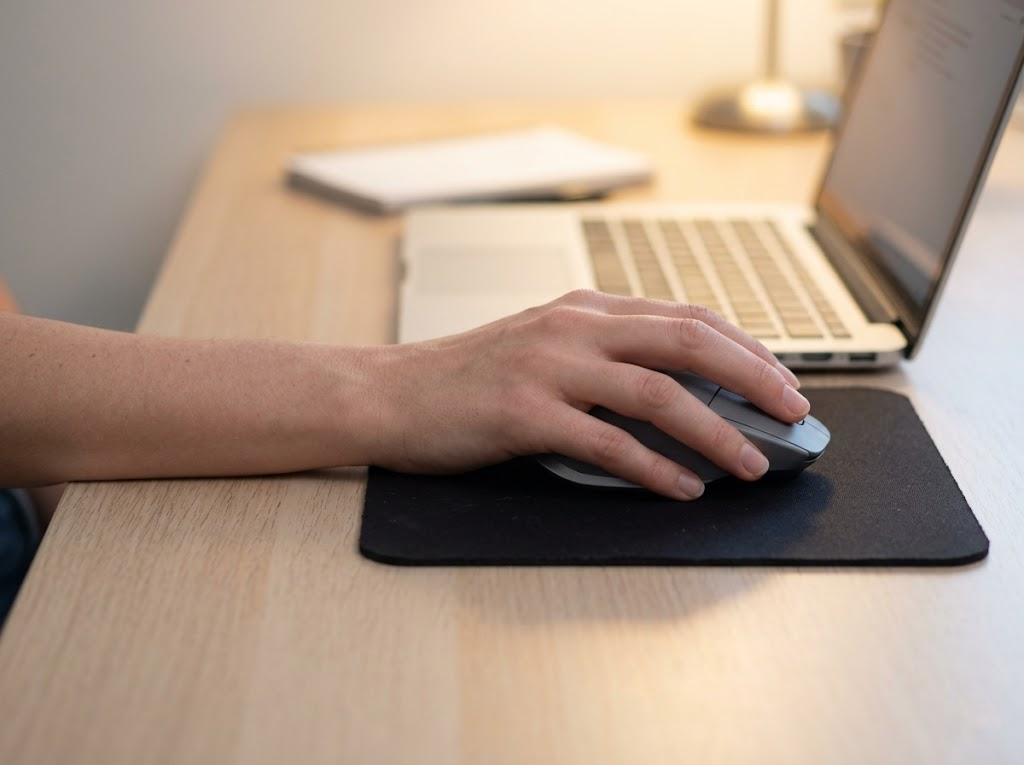
Given what the research shows about trackpad fatigue, this is one of the most straightforward improvements you can make to your laptop ergonomics. Position the mouse close to your keyboard on the dominant-hand side, with your arm relaxed and your elbow at a natural angle. Removing the static loading that the trackpad creates gives your shoulder and upper arm a chance to work more naturally through the day.
Make the text bigger before you move any closer
If you are squinting at your screen, the instinct is often to sit closer. The better approach is to increase your operating system’s display scaling until the text is comfortable to read from the correct distance. Match your screen brightness to the room’s light level. A screen that is much brighter or dimmer than its surroundings increases visual effort in ways that compound over hours.
Take breaks that actually help
Cornell University’s ergonomics program suggests a 20-8-2 pattern: for every 30 minutes, sit for 20, stand for 8, and move for 2. For your eyes, the 20-20-20 rule is a practical companion. Every 20 minutes, look at something at least 20 feet away for 20 seconds, which gives your eye muscles a proper chance to rest rather than staying locked in close focus.
Connect an external monitor when you’re at a fixed desk

For days when you are working from the same place for several hours, plugging into a larger external display sidesteps many of the screen-related problems in one move. A proper desktop monitor gives you a larger viewing area, sits at a height you can adjust, and eliminates the trade-off between screen and keyboard position that makes laptop-only work so demanding.
Listening to What the Fatigue Is Telling You
End-of-day exhaustion that feels disproportionate to the work you actually did is worth taking seriously. A laptop that pulls your neck forward, loads your shoulders through hours of trackpad use, and asks your eyes to strain over a small screen is not a passive tool. It draws on your physical and mental reserves continuously and with little obvious warning.
A stand, an external keyboard, and a mouse address a significant amount of the problem. For people who spend the majority of their working day on a laptop, though, a proper ergonomic assessment can identify the adjustments that will genuinely make the most difference for their body and their particular setup.
How We Can Help at Ergo Global
At Ergo Global, we work with organizations to build ergonomics programs that address the everyday challenges their people actually face. Our consultants conduct thorough workstation assessments for both office and remote workers, including those who primarily use laptops.
Whether your team needs individual assessments, company-wide ergonomics training, or a managed program through our ErgoWOW platform, we can help you reduce fatigue, discomfort, and the risk of injury in a practical, lasting way.
If your people are spending their days on laptops, we would be glad to help you get the setup right.
Reach out to us and let’s talk about what your team needs.