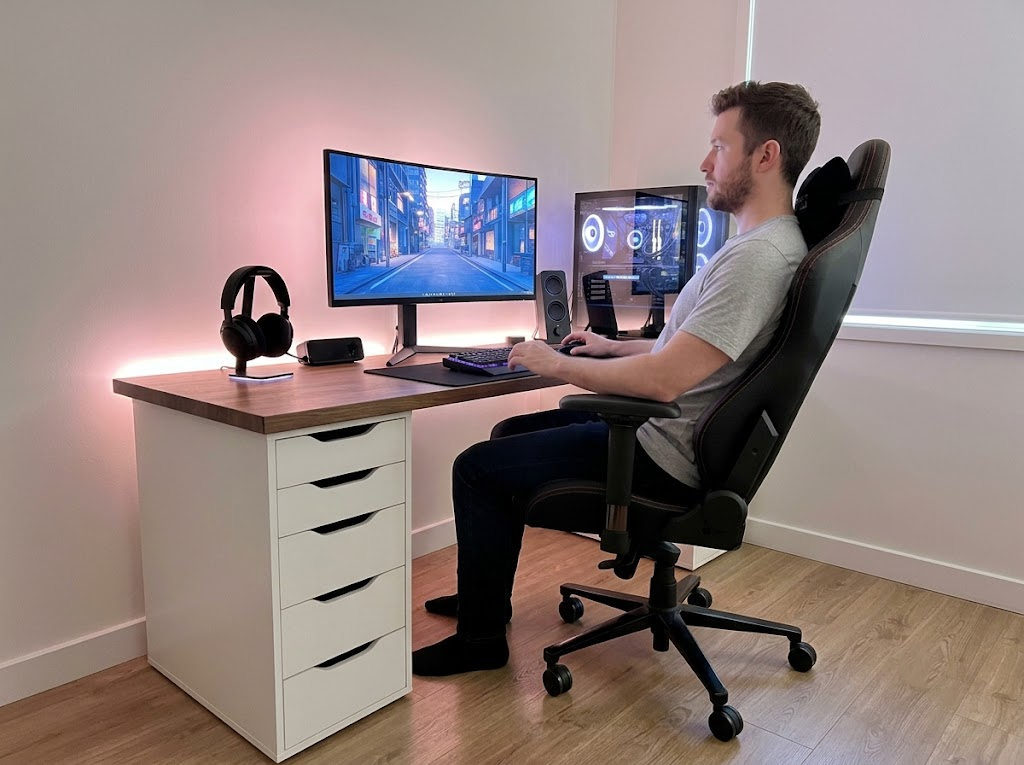


Pull up your chair. This won’t take long.
If you’re working with two monitors and haven’t given much thought to their positioning, there’s a fair chance your setup is quietly working against you. Research shows that dual monitors can boost productivity by up to 42% and reduce error rates by 33% — but those gains depend entirely on a setup that actually supports your body.
The checklist below covers every aspect of dual-monitor ergonomics. Go through it right now, at your desk, and answer yes or no. By the end, you’ll have a clear picture of what needs adjusting.
Why Getting This Right Actually Matters
Two screens create twice the opportunity for your body to compensate in ways it shouldn’t. With a single monitor, most people manage to keep it roughly centered. Add a second screen, and suddenly you’re rotating your neck dozens of times an hour without realizing it.

According to OSHA, poor posture is one of the leading risk factors for musculoskeletal disorders (MSDs) in the workplace. The dull ache in your neck that creeps in by mid-afternoon, the eye strain that builds toward the end of the day — these are often direct results of a dual monitor setup that was never properly adjusted.
The encouraging part: fixing it is mostly free, and much of it can be done right now.
The 5-Minute Dual Monitor Ergonomics Audit
Work through each section. A “no” answer means there’s something to fix.
Screen Height
- ☐ Are the tops of both screens level with each other?
- ☐ Is the top of each screen at or slightly below your eye level?
- ☐ Can you see the full screen on both monitors without tilting your head up or down?
What to look for: Sit naturally, look straight ahead. Your gaze should fall to roughly the top third of each screen. If you’re looking up or straining your chin down, the height is off.
Viewing Distance
- ☐ Are both screens roughly an arm’s length away (about 50 to 75 cm)?
- ☐ Can you read text on both screens without leaning forward?
- ☐ Do both screens feel at the same distance from your eyes?
What to look for: Extend your arm toward the screen. Your fingertips should just graze the display. OSHA guidelines recommend a viewing distance of 20 to 40 inches (50 to 100 cm) from the eye to the screen surface.
Screen Angle and Positioning
- ☐ Are both screens angled slightly inward toward you?
- ☐ If one is your primary screen, is it centered directly in front of you?
- ☐ Are you looking straight ahead at least 80% of your working time?
What to look for: Screens that are flat and parallel to each other force you to turn your head more than necessary. A slight inward angle reduces that rotation significantly.
Neck Rotation
- ☐ Can you glance at your secondary screen by moving your eyes rather than turning your head?
- ☐ Do your neck and shoulders feel relaxed at the end of a typical work session?
What to look for: Viewing your secondary screen should require minimal head movement. Ergonomic guidelines suggest that viewing each screen should require less than 20 degrees of neck rotation. If you’re turning your head fully to see the second monitor, it’s positioned too far to the side.
Glare and Lighting
- ☐ Are your monitors positioned perpendicular to any windows (not facing them directly)?
- ☐ Is the brightness level roughly the same on both screens?
- ☐ Is there no direct glare or reflection appearing on either screen?
- ☐ Does the brightness of your screens roughly match the ambient light in the room?
What to look for: A bright screen in a dim room makes your eyes work far harder than they need to. Glare from behind or in front of you quickly compounds eye fatigue.
Chair and Posture
- ☐ Are your feet flat on the floor (or on a footrest)?
- ☐ Are your elbows at approximately a 90-degree angle?
- ☐ Is your lower back supported by your chair?
- ☐ Is your mouse positioned close to your primary monitor on the same side as your dominant hand?
What to look for: Your chair and sitting position are the foundation on which everything else builds. If your posture is off, even a perfectly positioned monitor won’t fully prevent strain.
How Many “No” Answers Did You Get?
0 to 2: Your setup is in good shape. Keep an eye on how your body feels throughout the day, and check in again if anything changes.
3 to 5: A few targeted adjustments should make a noticeable difference. Tackle the easiest fixes first.
6 or more: Your setup needs a proper rethink. The good news is that most of these issues are fixable with small changes, a few pieces of equipment, or a professional assessment.
Quick Fixes for the Most Common Issues
Screens at Different Heights
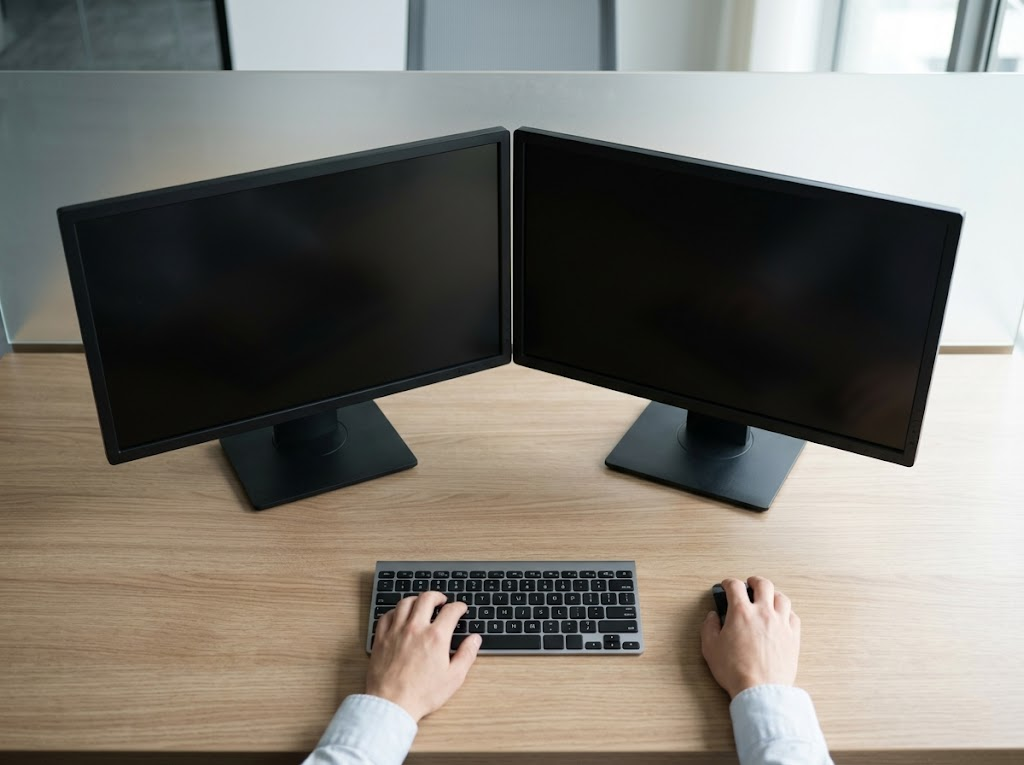
This is the most overlooked dual monitor ergonomics mistake. Mismatched screen heights mean your eyes and neck are constantly compensating as you switch between them. Use monitor arms or adjustable stands to align both screens to the same height. According to Cornell University ergonomics research, the top of your monitor should sit at or slightly below your natural eye level.
Leaning Forward to Read

If you’re squinting or drifting forward, the problem is usually a combination of viewing distance and font size. Push the screen back to arm’s length and increase your operating system’s text scaling instead. Sitting closer to the screen increases eye strain and encourages forward-head posture, which places significant load on your cervical spine.
Secondary Monitor Too Far to the Side
When the secondary screen sits at a wide angle, every glance becomes a head turn. For equal-use setups, bring both monitors together so the inner bezels almost meet, and angle them slightly inward in a V shape. For setups where one screen dominates, place the primary directly in front and angle the secondary about 30 degrees to the side of your dominant eye. This layout means you can check the secondary with your eyes rather than your neck.
Glare on One or Both Screens
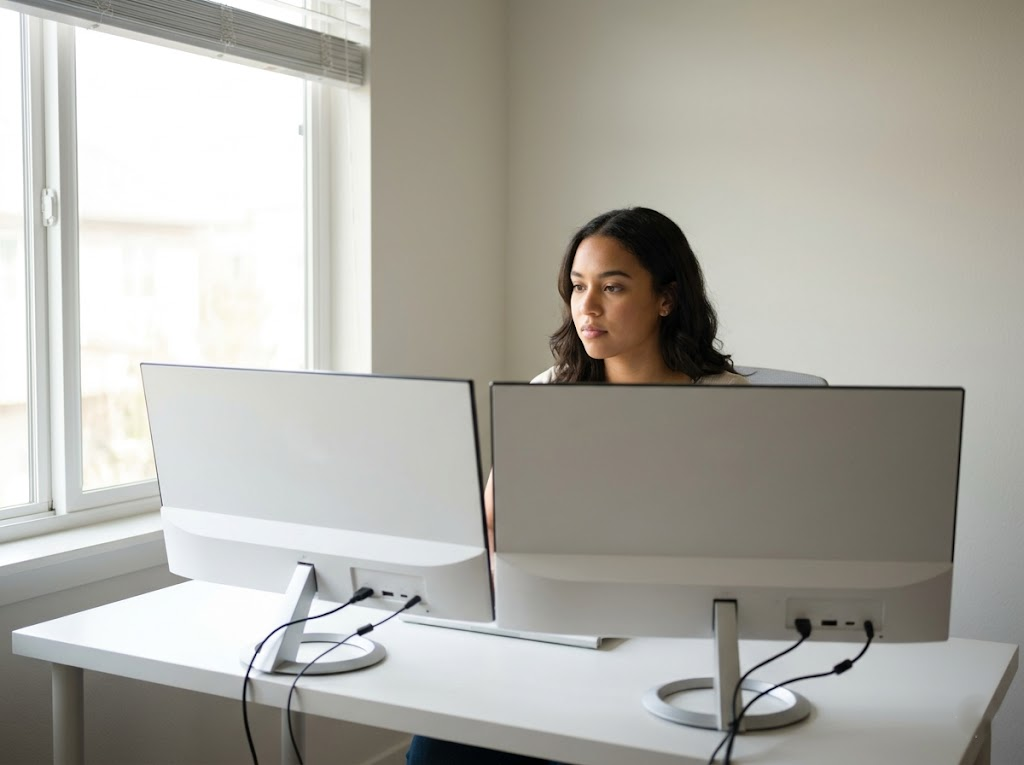
Position your desk so windows sit to the side of your monitors rather than directly in front of or behind them. Overhead lighting can cause similar problems. Soft, indirect task lighting works much better for screen-heavy work. If the room’s brightness changes throughout the day, adjust your screen brightness to match.
Mouse on the Wrong Side
If your primary screen is on the left and your mouse is on the right, you’re reaching into the far reach zone with every single click. Over hours and days, this builds into real shoulder and elbow strain. Move your mouse to align with your primary monitor on the side of your dominant hand.
Three Habits That Support Your Setup Long-Term
Getting the physical configuration right is a strong foundation. These habits will keep it working well day to day.
Use the 20-20-20 Rule
Every 20 minutes, look at something at least 20 feet away for 20 seconds. This practice relaxes the ciliary muscles in your eyes, which work continuously to maintain focus on a close-up screen. Set a timer if you tend to lose track of time in deep work sessions.
Change Position Throughout the Day
Cornell University’s ergonomics program recommends a 20-8-2 pattern: for every 30-minute block, sit for 20 minutes, stand for 8 minutes, and move around for 2 minutes. Changing position reduces the static load on your neck and shoulders and keeps blood flowing properly.
Revisit Your Setup When Anything Changes
A new chair, a new desk, a new monitor, even a new role that shifts which screen you use more. Any of these can throw your dual monitor ergonomics out of alignment. Run through this checklist again whenever something changes in your workspace.
Small Changes, Big Difference

Adjusting the screen height, repositioning your secondary monitor, and moving your mouse cost nothing and take less time than a coffee break. The physical improvements to how you feel throughout the day are often immediate. Run back through the checklist now. Make the quick fixes you can do right where you’re sitting. For anything that needs equipment or a deeper look, flag it and plan for it.
Your body will notice the difference today.
Work With Us at Ergo Global
At Ergo Global, we help organizations build ergonomics programs that genuinely work for their teams. Our consultants conduct thorough workstation assessments, including dual-monitor setups, as part of our tailored ergonomics services.
From one-off assessments for a handful of employees to company-wide managed programs through our ErgoWOW platform, we make it straightforward to create workspaces that protect your people and support their best work.
Get in touch with us, and we’ll help you build a setup that fits.