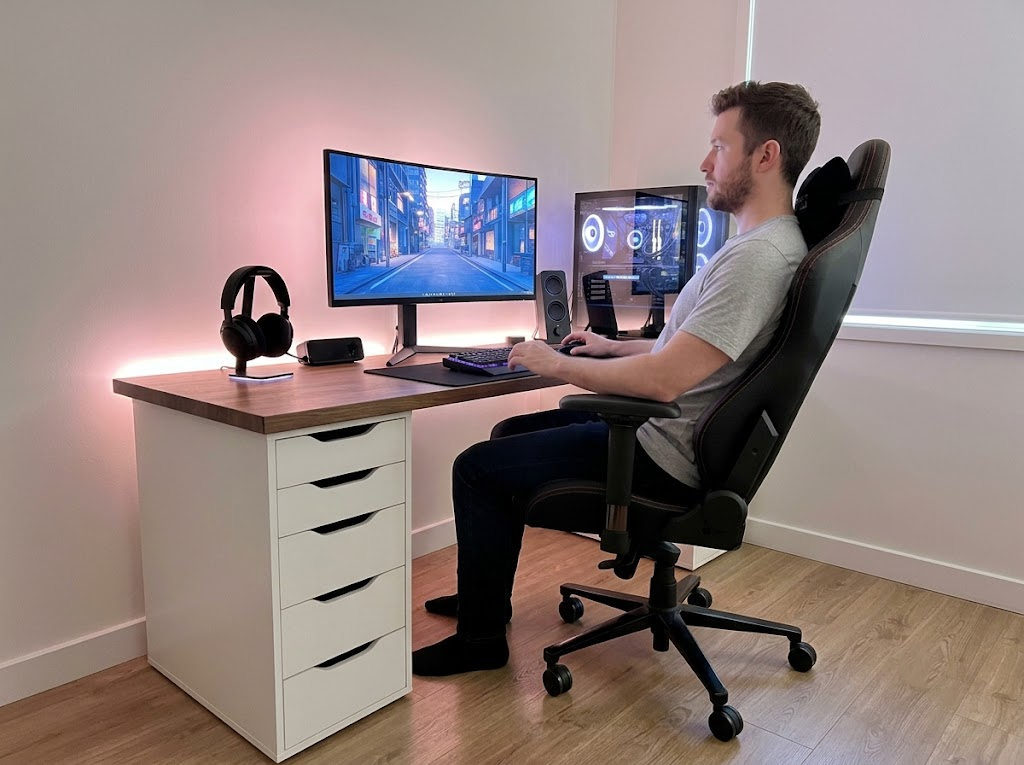


If your wrists ache after a long day at the keyboard, you are far from alone. Wrist pain from typing is one of the most common complaints among desk workers, and most people just accept it as part of the job. It does not have to be.
The thing about wrist pain from typing is that it almost never comes from one bad session. It builds quietly over weeks and months through thousands of small repeated stresses on the tendons, nerves, and joints of the wrist and forearm. That also means the solution is more accessible than most people expect. A handful of changes to your setup, your habits, and your daily routine can make a real difference.
Here is everything you need to know to get ahead of it.
Why Typing Causes Wrist Pain
The wrist is a surprisingly tight space. Tendons, nerves, and small bones all pass through it in close proximity, and that anatomy is exactly what makes it vulnerable to repetitive stress.

According to Midwest Orthopedics at Rush, the most common conditions triggered by typing include wrist tendonitis, in which the wrist tendons become inflamed from repetitive motion, and carpal tunnel syndrome, in which the median nerve is compressed as it passes through the narrow carpal tunnel.
Typing creates a particular kind of strain because it combines high repetition, sustained postures, and often a poor wrist angle, all held for hours at a time. As ATI Physical Therapy explains, typing with bent wrists or a tight grip steadily inflames the tendons over time. Add a keyboard set at the wrong height, and the wrist ends up slightly bent all day, compressing the carpal tunnel with each passing hour.
The most common contributors to wrist pain from typing are:
- Wrists bent upward or downward during typing instead of staying level
- The keyboard height is too high, forcing wrist extension
- Resting the wrist directly on the desk while actively typing
- Typing with a tense grip and stiff fingers
- Extended sessions without movement or micro-breaks
- Mouse positioned too far to the side, causing shoulder and wrist strain
Most of these are fixable with small, deliberate changes.
What a Comfortable Wrist Position Feels Like
Before you start adjusting things, it helps to know what you are aiming for. A neutral wrist is one in which the hand, wrist, and forearm form a single straight, unbroken line. No upward bend, no downward bend, no sideways angle.

Physical therapists at 1HP describe the neutral wrist as the position in which the wrist places the least stress on its supporting muscles and tissues. Even a small deviation from neutral, held for hours and repeated every day, adds up to real cumulative strain on the tendons and nerves inside the wrist.
Everything that follows in this guide works toward that one goal: keeping your wrists as close to neutral as possible for as much of your workday as possible.
Your Keyboard and Mouse Setup Is Probably the Culprit
This is where most wrist pain from typing originates, and where the most impactful changes happen. Small tweaks to your keyboard and mouse position have a surprisingly large effect on how your wrists feel at the end of the day.
Your Keyboard Is Likely Too High
Your keyboard should sit at a height where your elbows bend at roughly 90 degrees, and your forearms run roughly parallel to the floor. Ergonomic positioning guidelines suggest keeping elbows between 90 and 110 degrees and close to your body, with the keyboard at or just below elbow height.
When the keyboard is too high, the wrists have to extend upward to reach the keys, and that angle compresses the carpal tunnel with every single keystroke across the day.
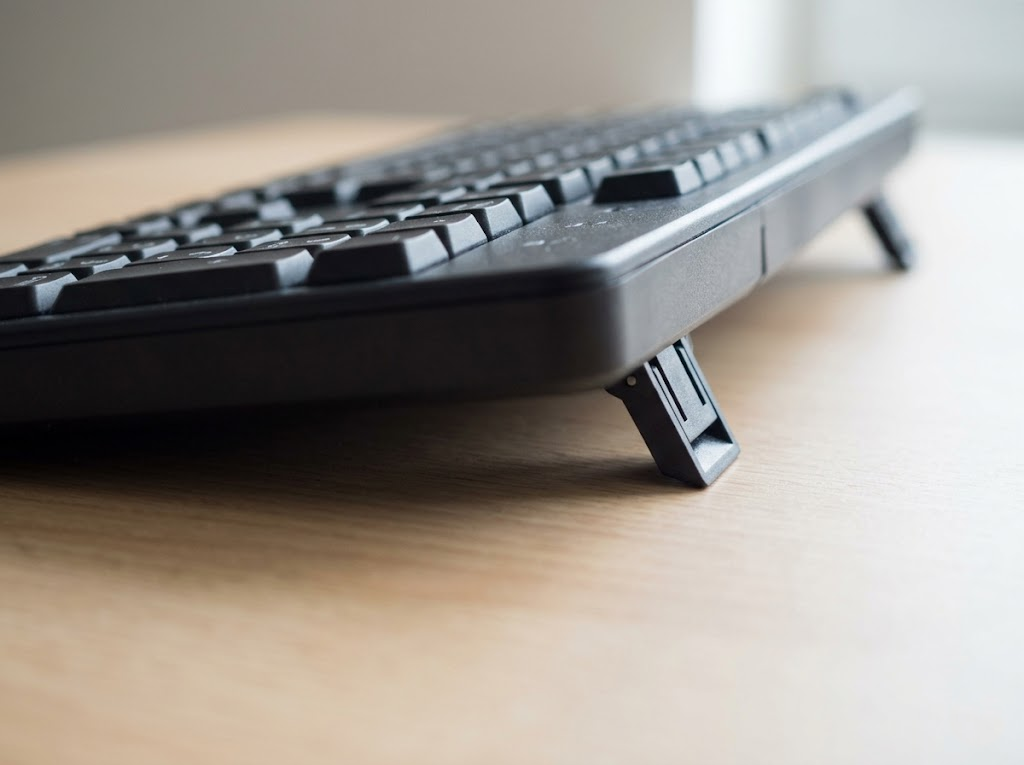
Those Pop-Out Legs at the Back of Your Keyboard Are Not Helping
This one surprises a lot of people. Most standard keyboards come with little pop-out feet at the back that tilt the keyboard upward. It feels natural, but it is actually one of the most widespread ergonomic mistakes in office setups.
Eureka Ergonomic explains that a positive keyboard tilt pushes the wrists into extension, increasing pressure in the carpal tunnel. A flat keyboard is better. A slight negative tilt, where the back of the keyboard slopes gently away from you, is better still.
Your Mouse Is Probably Too Far Away
Your mouse should sit at the same height as your keyboard, right beside it. Keeping the mouse close prevents shoulder reaching, which creates a chain of tension that travels from the shoulder all the way down into the wrist. A mouse placed too far to the right also tends to pull the wrist sideways into a position called ulnar deviation, which is a very common contributor to wrist pain over time.
Compact keyboards without a number pad are genuinely useful here since they naturally bring the mouse closer to your midline.
Wrist Rests Are Useful, But Only If You Use Them Right
Here is something most people get the wrong way around. The purpose of a wrist rest is to support the heel of your palm during pauses in typing, not to cushion the soft underside of your wrist while you are actively typing.
Resting the wrist directly on a surface during keystrokes places pressure right over the carpal tunnel. During active typing, keep the wrists floating just above the surface. Use the wrist rest during natural pauses between bursts of typing.
Your Chair Height Matters More Than You Would Think
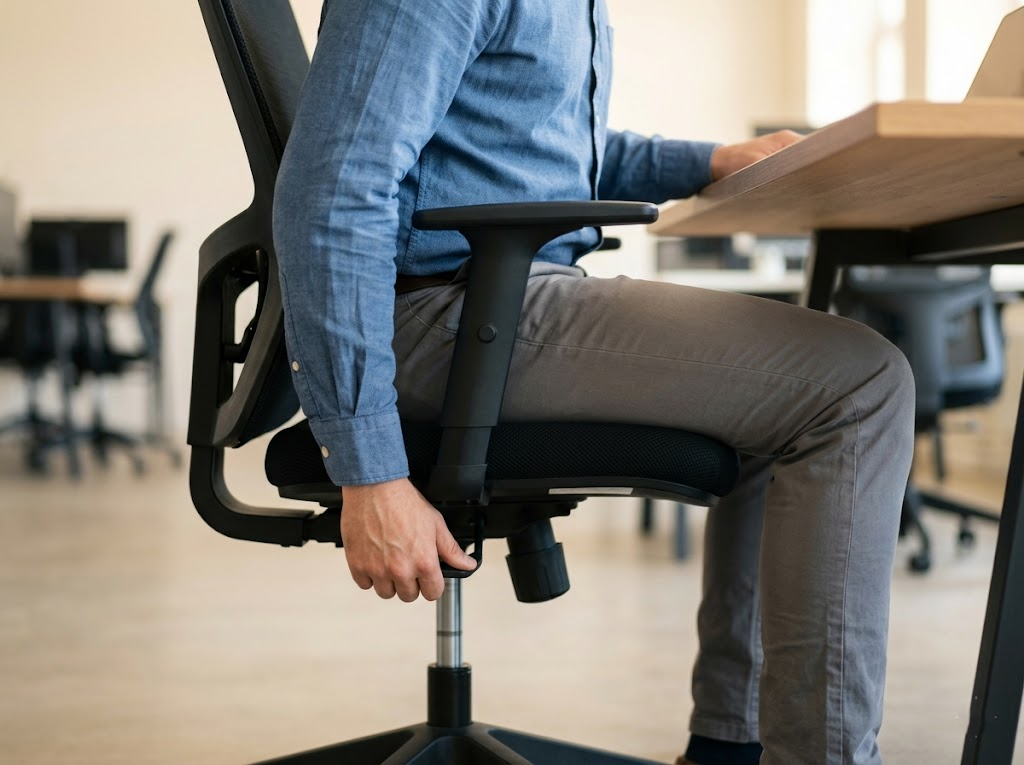
Wrist position does not actually start at the wrist. It starts at your chair. Where your seat sits determines where your elbows land relative to the desk, which in turn determines the angle your wrists arrive at when you type.
Try This Quick Elbow Check
Sit in your chair with your arms hanging relaxed at your sides, then bend your elbows to 90 degrees. Your forearms should end up at roughly the same height as your desk or keyboard. If your desk is higher than your forearms in that position, you are typing with raised shoulders and extended wrists, regardless of any other adjustments you make. Getting this one alignment right is often the single biggest improvement people notice.
A Few Chair Tweaks That Support Your Wrists
Seat height, lumbar support, and armrests all influence wrist position over a long session. Feet flat on the floor, knees at roughly 90 degrees, lower back supported by your chair, and elbows staying close to your body is the postural foundation that makes comfortable wrist alignment sustainable. Armrests at the wrong height consistently push the shoulders up or pull the elbows out, and both of those can directly contribute to wrist strain.
How You Actually Type Matters Too
Two people can sit at identical desks and have completely different wrist experiences depending on their typing habits. These are worth developing.
Stop Resting Your Wrists While You Type
Letting the wrists rest flat on the desk during active typing is one of the most common habits behind typing-related wrist pain. Midwest Orthopedics at Rush recommends keeping the wrists elevated just above the keyboard surface during active use and only resting them during genuine pauses. This takes the pressure off the carpal tunnel and lets the wrist hold its natural position while the fingers do their work.
Try Going Easier on the Keys
Most people type harder than they need to, especially on laptop keyboards with shorter key travel. Every unnecessary impact sends force through the finger joints and into the wrist. Try using just enough pressure to register each keystroke. A mechanical keyboard with a tactile switch that gives clear feedback makes this habit adjustment noticeably easier.
Reach for Far Keys with Your Whole Arm
Stretching or twisting the wrist to reach keys at the edges of the keyboard is a small habit that adds up over a full day of keystrokes. Houston Methodist recommends moving the whole hand and forearm toward the far keys rather than extending just the fingers. It is a minor change in the moment, but a meaningful one across thousands of daily keystrokes.
Build in Breaks and Keep Things Moving
Even a well-set-up workstation cannot fully protect against sustained static loading. The tendons and muscles in the wrists and forearms need periodic recovery from the repetitive pattern of typing.

Taking a short break every 20 to 30 minutes, standing up, walking for a moment, and gently shaking out the hands, lets the tissues decompress and blood flow recover before the next session. Research supports regular movement breaks as one of the most straightforward ways to reduce cumulative strain across a workday. A phone reminder or a desktop break timer makes this habit easy to maintain without much disruption.
5 Stretches You Can Do Right at Your Desk
These take just a few minutes and make a real difference in how the wrists and forearms feel across a long workday. Do them two to three times throughout the day, and always keep them gentle.
Wrist Flexor Stretch
Extend one arm in front of you with the palm facing down. With your other hand, gently pull the fingertips downward toward the floor until you feel a stretch along the back of the forearm. Hinge Health physical therapists describe this as one of the most effective stretches for the overworked wrist extensor muscles that desk workers commonly develop tightness in. Hold for 20 to 30 seconds on each side, two rounds.
Wrist Extensor Stretch
Extend one arm in front of you with the palm facing up. Gently pull the fingers downward with your other hand, this time stretching the underside of the forearm. Physical therapists at Hinge Health note that wrist bends in both directions increase circulation to the area and reduce the stiffness that builds from repetitive tasks. Hold for 20 to 30 seconds on each side.
Prayer Stretch
Press your palms together in front of your chest with fingers pointing upward. Slowly lower your joined hands toward your waist while keeping the palms together, and hold when you feel a gentle stretch along the forearms. This stretch is particularly good for the median nerve and the flexor muscles running through the carpal tunnel. Hold for 10 to 15 seconds, two to three repetitions.
Tendon Glides
Cleveland Clinic recommends tendon glides to maintain smooth tendon movement through the carpal tunnel, especially for those with early carpal tunnel symptoms. Hold one hand up in a relaxed, open position. Slowly move through these positions: hook fist (bend just the middle and top joints), full fist (curl all the way in), then return to open. Hold each for about three seconds. Do three sets of ten on each hand, once or twice a day.
Wrist Circles
Extend both arms in front of you and slowly rotate both wrists five times in each direction. It takes about 30 seconds, it feels good immediately, and it reduces the joint stiffness that builds up from hours in the same position. Do this every hour during a heavy typing day.
When to Seek Professional Help

For mild wrist discomfort that eases with rest and the adjustments described above, self-management is usually effective. However, some symptoms signal that a professional assessment is the right next step.
Please seek professional help if you notice:
- Pain that persists after rest or appears at night
- Numbness or tingling in the fingers or hand, especially in the thumb and first two fingers
- Grip weakness or difficulty with fine motor tasks
- Symptoms that have lasted more than two to three weeks without improvement
- Swelling or visible changes in the wrist area
OrthoCarolina advises that persistent or worsening symptoms should not be left unaddressed. Early professional assessment gives you the best chance of resolving the problem before it progresses to a more complex condition.
How Ergo Global Can Help
At Ergo Global, we work with individuals and teams to get ergonomics right at the source. Our consultants assess your entire workstation setup, keyboard placement, chair alignment, monitor height, and typing habits, then deliver clear, personalized recommendations tailored to your situation. Wrist pain from typing is one of the most common issues we address, and we have helped numerous clients resolve it by fixing the root cause rather than managing the symptoms.
Whether you are dealing with early discomfort or looking to get ahead of an issue before it develops, we are here to help. Prevention is far more straightforward than recovery, and the right setup makes a real difference.
Book an ergonomic consultation with Ergo Global today and start working without wrist pain.